
Convert Windows Media files to MP4 effortlessly

Summary
Learn how to convert windows media file to mp4 format for better compatibility and smaller file sizes without compromising on video quality.


Separate videos with different parametersUsers can separate videos into equal clips by time, size and self-set parameter.
Cut Videos & AudiosUsers are free to cut videos and audios clips by setting start and end time.
Multiple Edit ToolsMerge, crop, rotate, cut and transform video easily. Change and add background music, subtitles and watermark to video.
Format ConversionSupport to convert videos and audios into different formats.
Separate videosSeparate videos into equal clips by time, size and self-set parameter.
Cut Videos & AudiosCut videos and audios clips by setting start and end time.
Format ConversionConvert videos and audios into different formats.
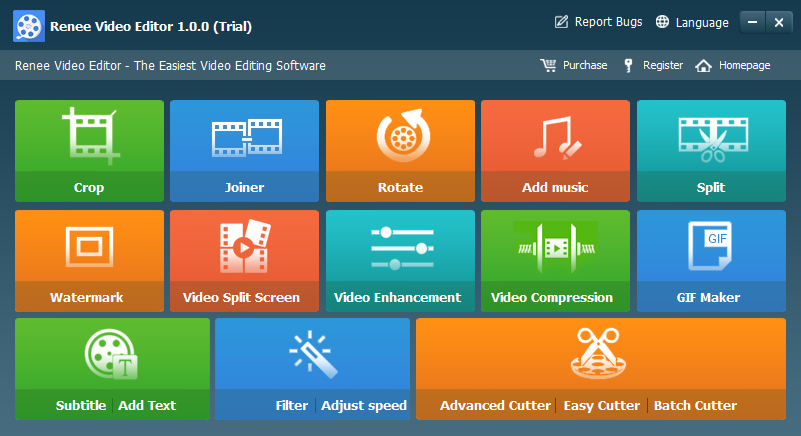
- Crop: Crop the size of the video frame
- Joiner: Merge multiple video/audio files into one complete file
- Rotate: Rotate the video 90°/180°/270° clockwise, counterclockwise, or turn the video upside down or mirror.
- Add music: Adjust volume, select audio tracks, score videos or delete original audio.
- Split: Divide the movie into multiple small clips according to duration, number of segments or file size.
- Watermark: Add text, pictures, videos or GIF pictures to the video in the form of watermark.
- Video Split Screen: One video or multiple video clips can be spliced into one video screen.
- Video enhancement: Improve video quality.
- Video Compression: Compress movie size.
- GIF Maker: Make videos or pictures into GIF files.
- Subtitle/ Add Text: Add subtitles/text to videos.
- Filter/ Adust Speed: Adjust brightness, contrast, saturation and add a variety of special effects; video speed adjustment supports 1/10-4 times speed adjustment.
- Advanced Cutter: Edit video, crop video, add watermark, subtitles, filter effects and soundtrack.
- Easy Cutter: Quickly cut video clips.
- Batch Cutter: Batch clip video/audio.
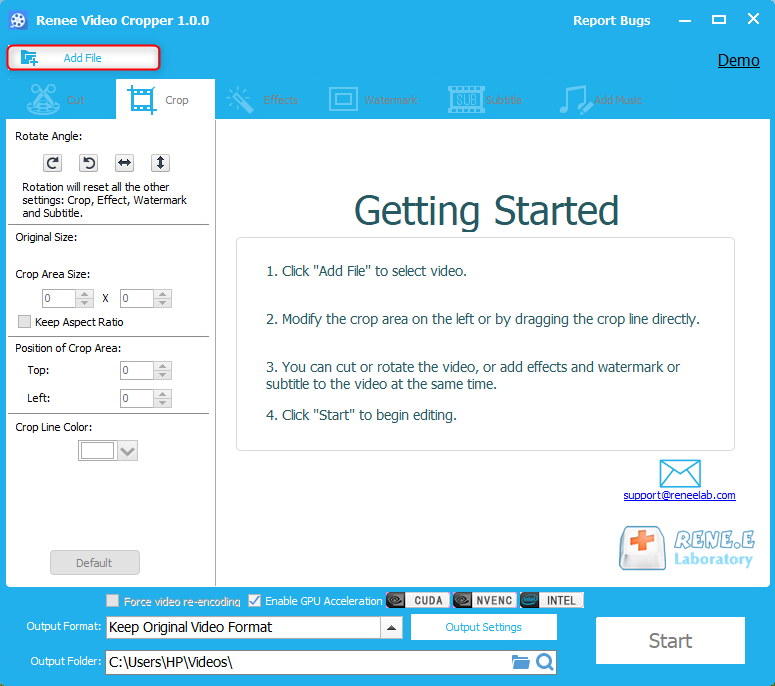
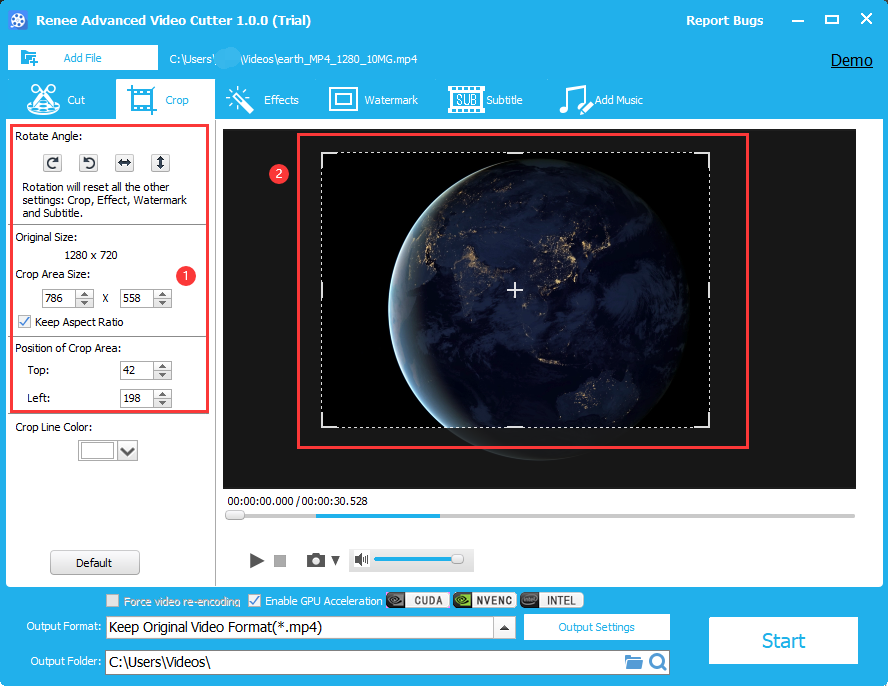
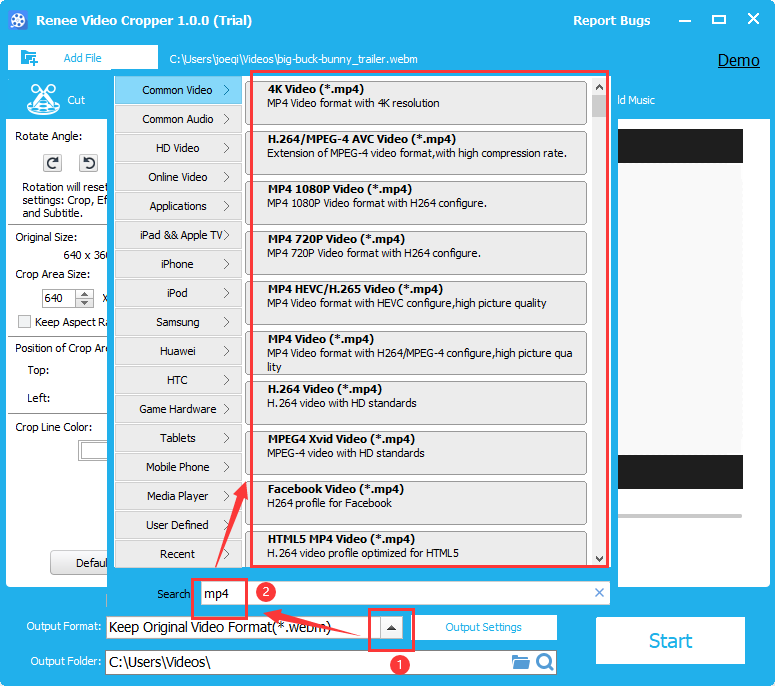
To access the export options, click the Export Settings button. A new interface will appear where you can choose the video output format, and customize settings such as video quality, video size, audio quality, and channel. To save your preferences, click on the Save Settings and OK buttons.
Relate Links :
Easily Convert MOV to MP4 with our MOV Converter
09-11-2026
Amanda J. Brook : Discover the best MOV to MP4 converters for seamless file compatibility on all devices. Learn how to convert...
How to Convert MP4 to MP3 on Mac?
09-11-2026
Amanda J. Brook : Transform your MP4 files into MP3 format effortlessly to maximize audio utility. By doing so, you'll not only...
Convert AVI to MP4: Easy Steps for Video Conversion
09-11-2026
Amanda J. Brook : Learn how to convert AVI files to MP4 for better compatibility across multiple systems with this informative article.


User Comments
Leave a Comment