
Video Converter: How to Convert Video Format on Mac?

Summary
Some video formats are not available on Mac. At this situation, you should convert the format or download the player supporting this format. In this essay, we will introduce 4 video format converters that fit MacOS and helps you quickly convert video formats.

Separate videos with different parametersUsers can separate videos into equal clips by time, size and self-set parameter.
Cut Videos & AudiosUsers are free to cut videos and audios clips by setting start and end time.
Multiple Edit ToolsMerge, crop, rotate, cut and transform video easily. Change and add background music, subtitles and watermark to video.
Format ConversionSupport to convert videos and audios into different formats.
Separate videosSeparate videos into equal clips by time, size and self-set parameter.
Cut Videos & AudiosCut videos and audios clips by setting start and end time.
Format ConversionConvert videos and audios into different formats.
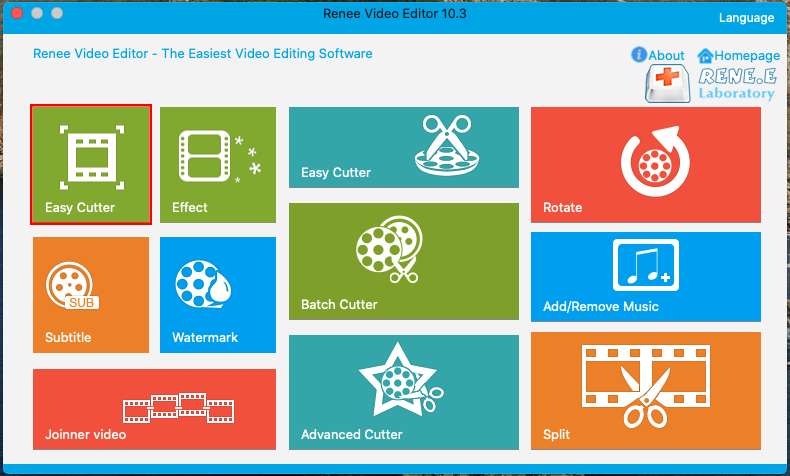
① Install and open Renee Video Editor, and then click on [Easy Cutter].
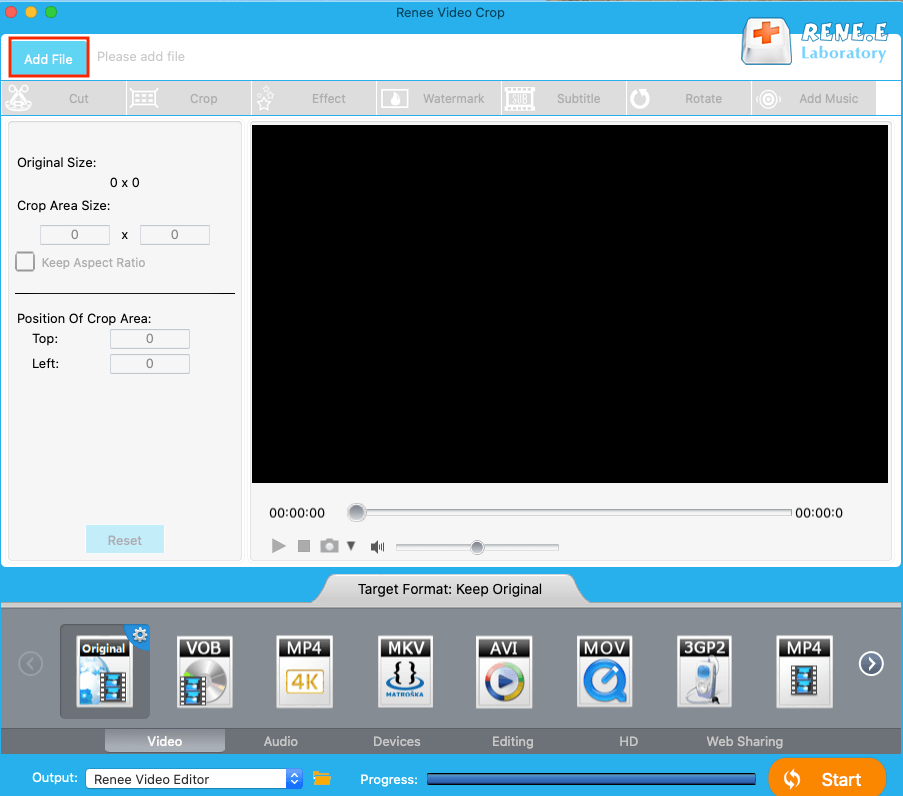
Cut video
Move the slider to select the start and end time and cut video.
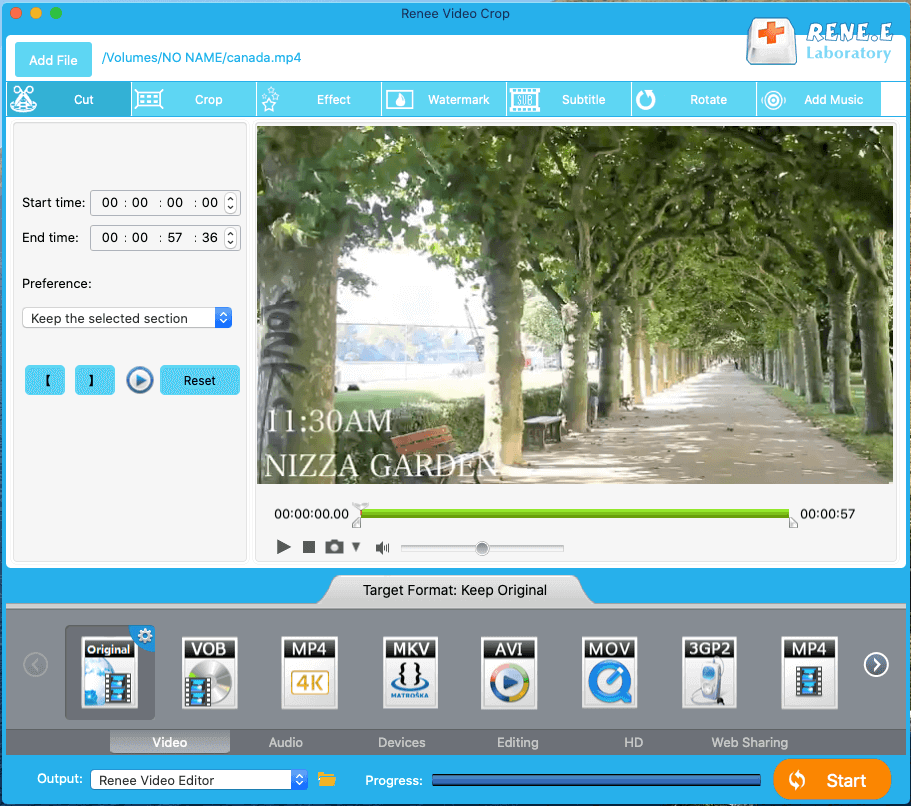
Freely move the cut box or use the specific values to select the wanted video area.
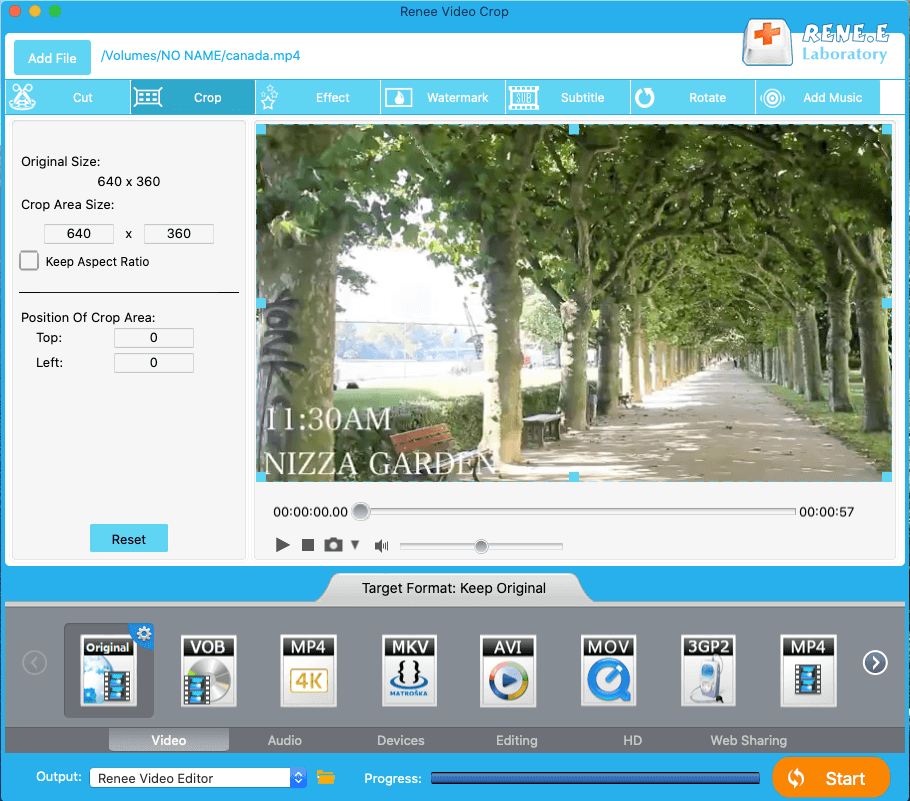
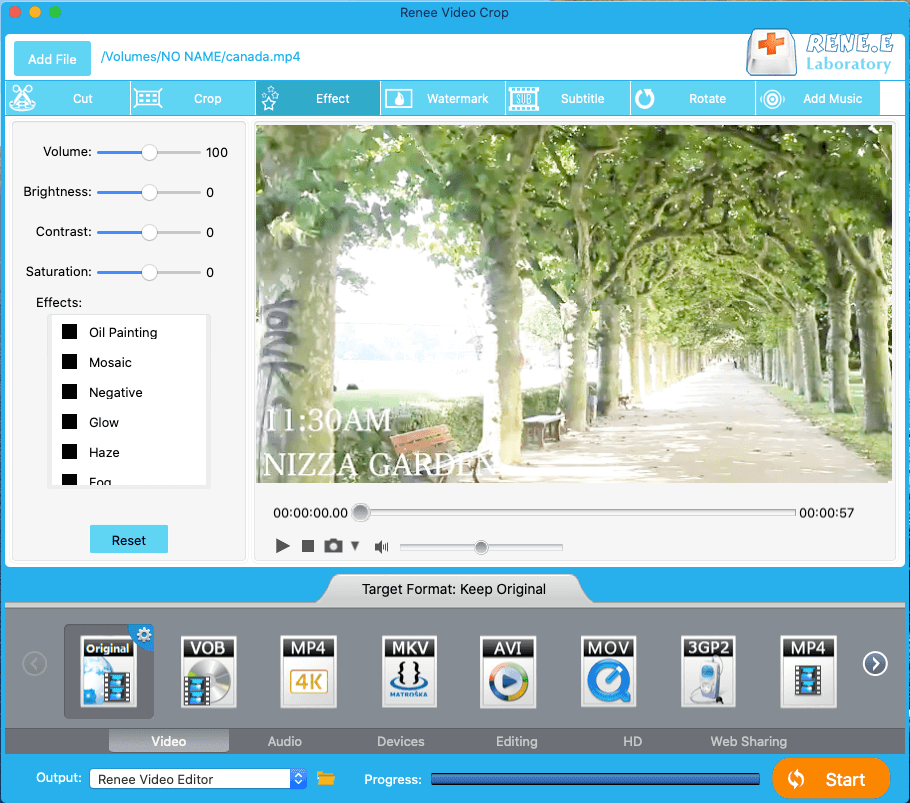
Adjust brightness, contrast, saturation, or add filters to create different visual effect.
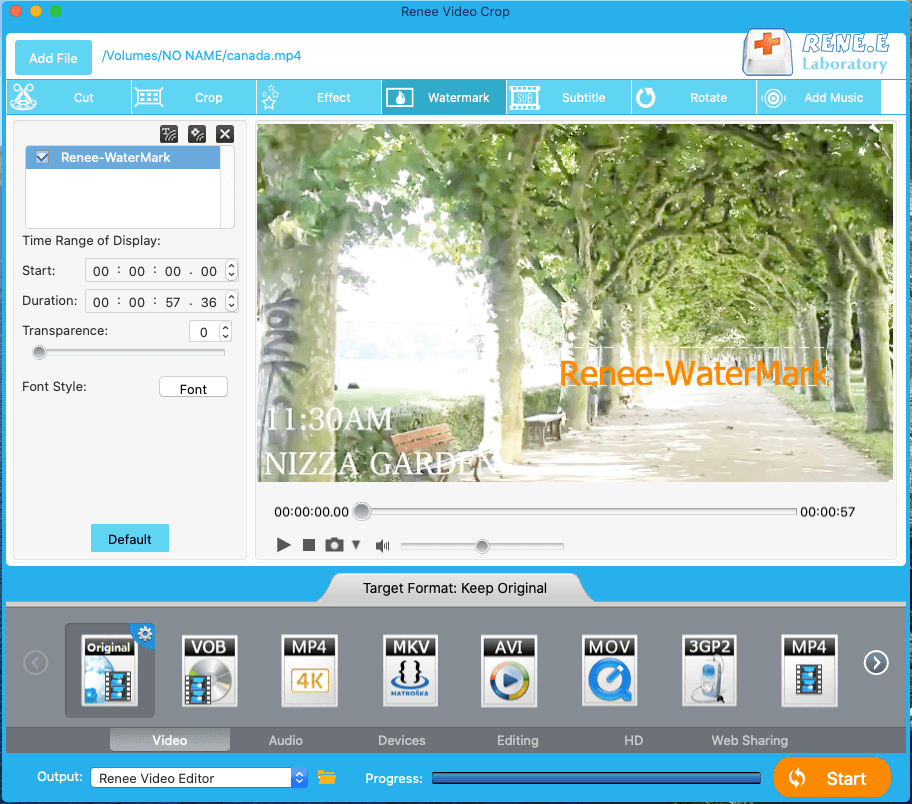
Add text and image watermark.
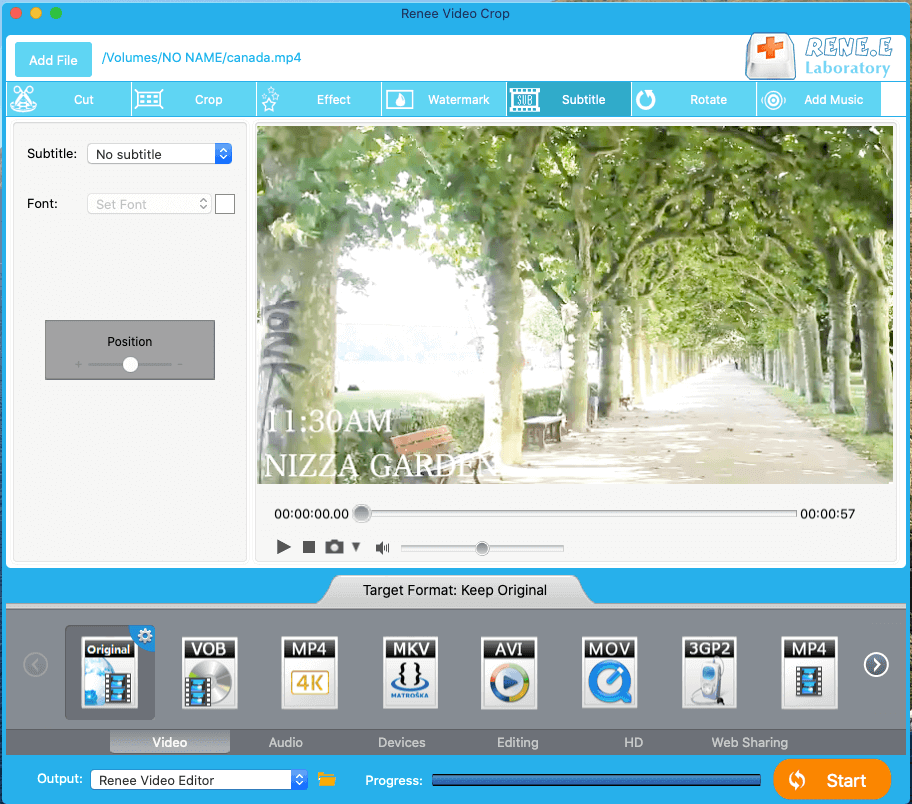
Add subtitles to make viewers understand better.
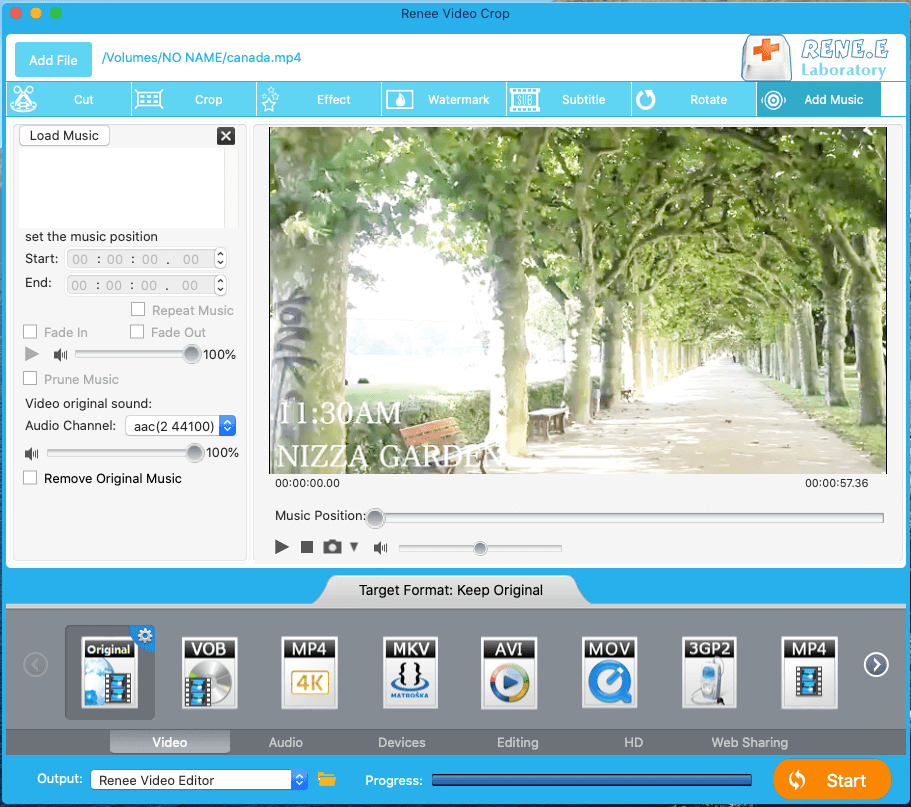
Click on [Load Music] to add background music.
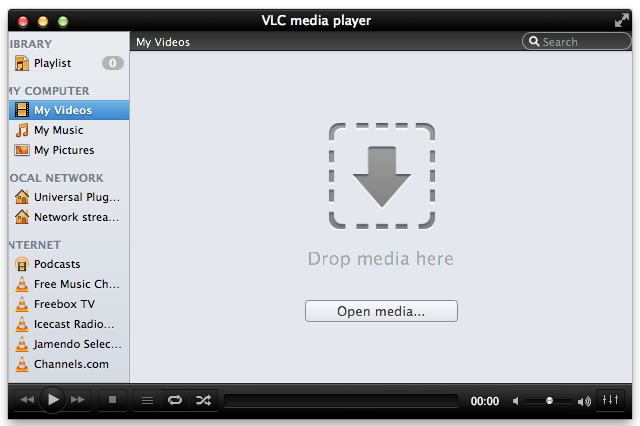
How to take VLC Media Player as a video converter on Mac:
① Open VLC and go to [File]> [Convert Stream].
② Drop the target video file into the pane; select the wanted format in the option [Choose Profile]; finally, select a destination folder and click [Save] to convert.
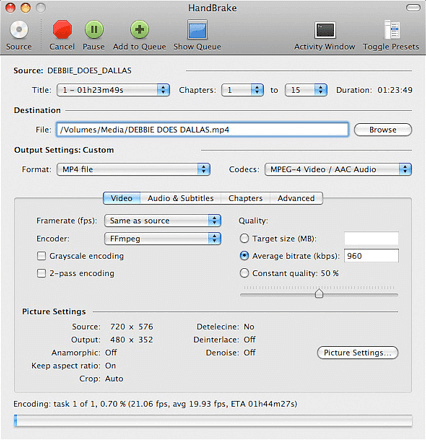
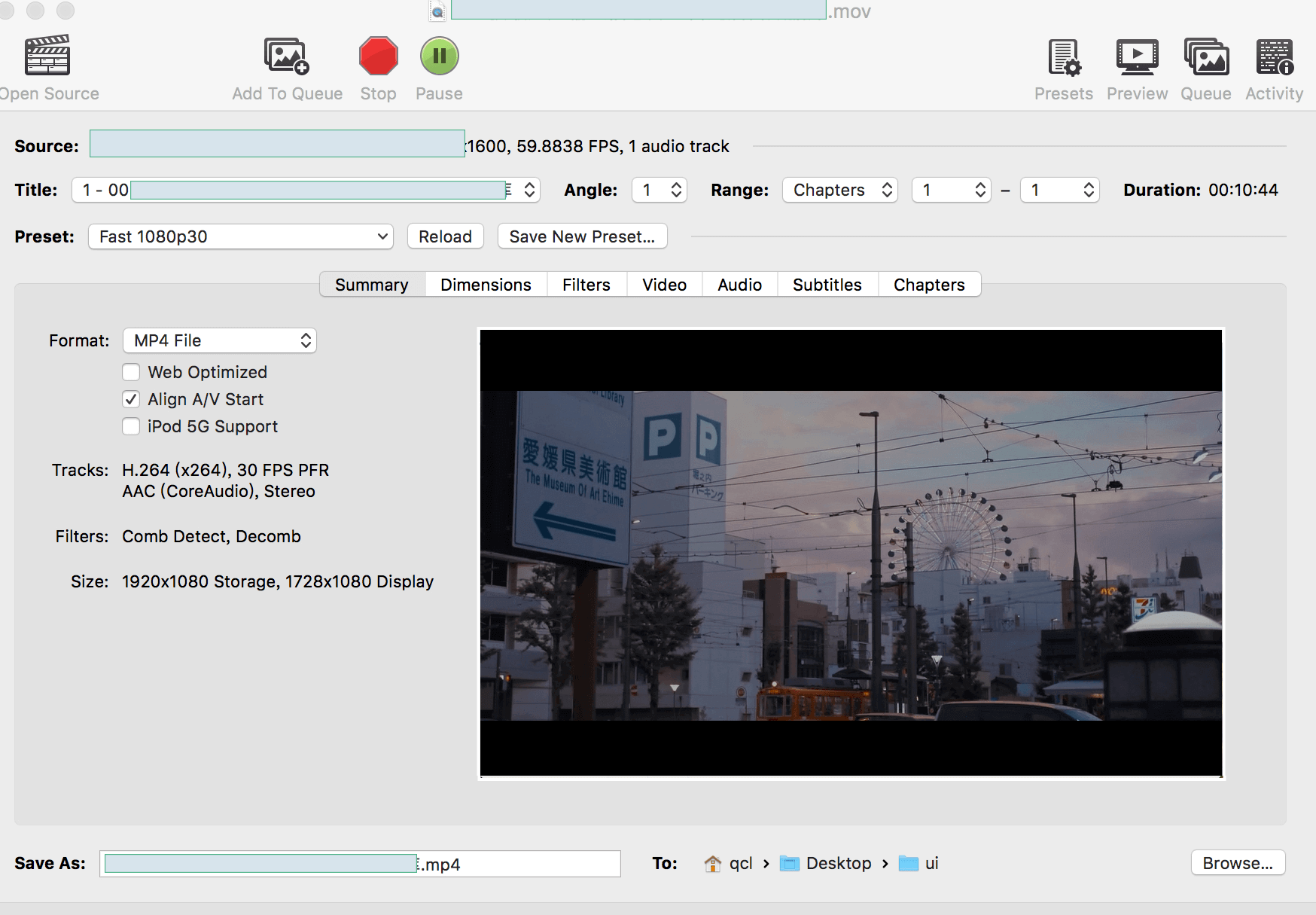
① First, open HandBrake and drop the target video file into the converter.
② Then, follow the tips to set the options , including the format, size and encoder. After that, click on [Start] at the top menu and wait for format conversion.
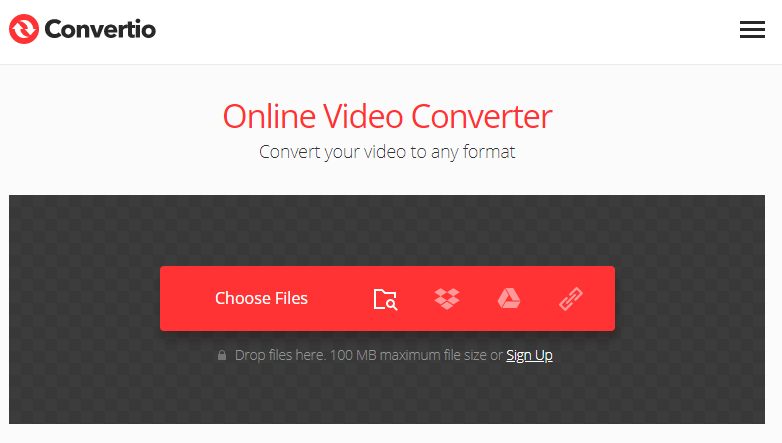
But it should be noted that the video file size cannot exceed 100 MB. Otherwise, it cannot be uploaded to the website. Due to the online operation, the converter is greatly affected by the network. Importantly, the files saved to the website server may be disclosure.
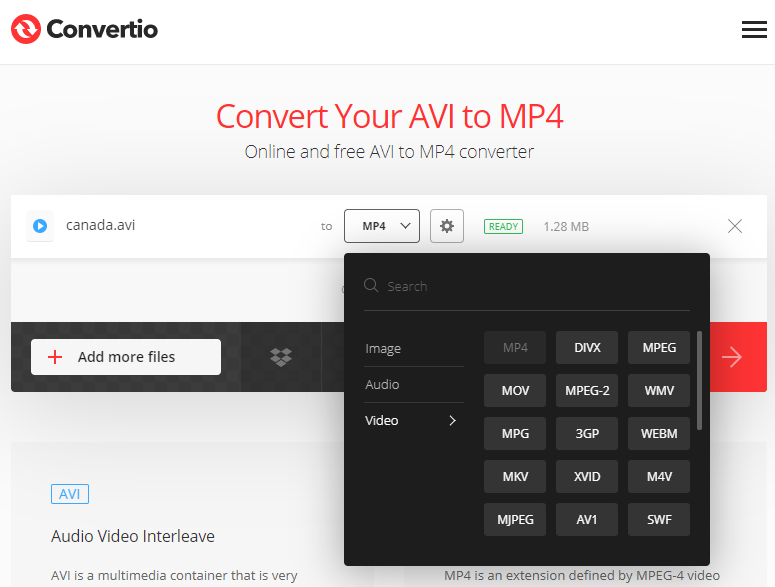
Here is the URL to open: https://convertio.co/video-converter/
How to use Convertio:
① Access to the website and upload the target video.
Relate Links :
Easily Convert MOV to MP4 with our MOV Converter
09-11-2026
Amanda J. Brook : Discover the best MOV to MP4 converters for seamless file compatibility on all devices. Learn how to convert...
Best MP4 Converters for Mac OS
09-11-2026
Amanda J. Brook : Discover the best mac mp4 converter to efficiently convert and edit video files. Enhance transmission and usability with...
Best MP4 to 3GP Converters for Windows
09-11-2026
Amanda J. Brook : Learn how to convert MP4 to 3GP on Windows. Discover two powerful format conversion tools to easily convert...
Top Four M4A Converters: Streamline Your Audio Conversion
09-11-2026
Amanda J. Brook : Explore four m4a converter for seamless, high-quality audio file conversion and optimal playback on iOS devices including iPhone...


User Comments
Leave a Comment