How to Add Music to Sony Walkman: A Complete Guide
9 June 2023Amanda J. Brook Senior Product Manager
Last update by James Smith at 8 November 2026
Summary Learn how to transfer songs to your walkman for an ultimate audio experience. Follow these simple steps to enjoy your favorite tunes on-the-go.
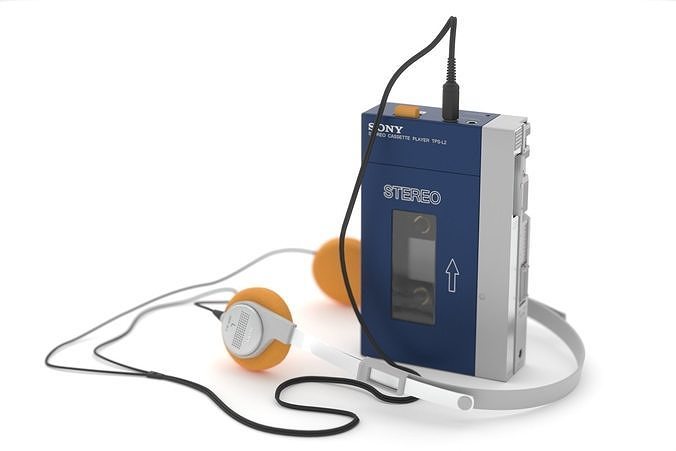
Walkman is a general term for a personal portable music player produced by Sony Corporation of Japan. With the popularity of walkman, walkman also became a cultural phenomenon for a time.
How to transfer songs to walkman?
Use SonyMediaGo to import music to walkman
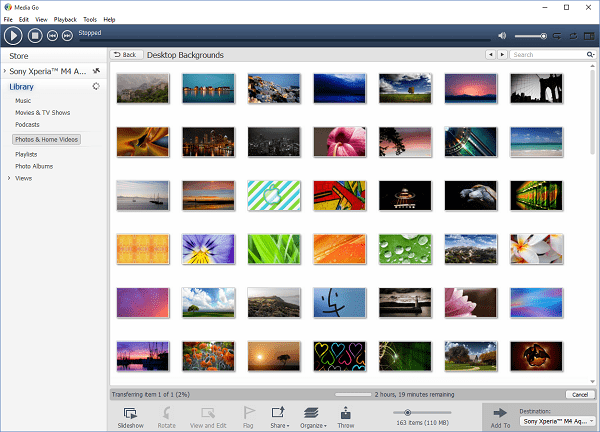
walkman is a portable music player produced by Sony Corporation, and SonyMediaGo is an entertainment management software officially released by Sony. Using MediaGo, you can easily import music to walkman.
1. Download and install MediaGo on the official website, and then open the software.
2. When Walkman is connected to the computer via data cable, MediaGo will immediately detect and display the device.
3. Move the converted music file to the media library, then transfer the music from the media library to your walkman.
Import music directly to walkman
When connecting certain walkman models to a computer, the driver will be installed automatically and the device can be managed like a USB flash drive. Simply use the original data cable to connect the walkman and computer. Once the driver is installed, a drive letter will appear on the computer.
Finally, save the converted music into the corresponding folder on the disk.
III How to convert songs into formats supported by walkman
Formats supported by walkman audio
Generally, walkman can support a variety of audio formats such as MP3, WMA, AAC, linear PCM, and HE-AAC. But when it comes to choosing the right format, we highly suggest opting for MP3. This is due to two main reasons:
1. Good sound quality due to its small file size.
2. The sampling frequency for compressed MP3 music varies. You have the option to save space by using a sampling frequency of 64 Kbps or lower, or you can opt for 320Kbps for better sound quality.
Use Renee Audio Tools to convert audio to walkman supported formats
When it comes to audio editing, I recommend everyone to use Renee Audio Tools, which is a powerful, simple, and practical free audio tool that can meet most people’s audio editing needs.
Professional Audio Editor – Renee Audio Tools
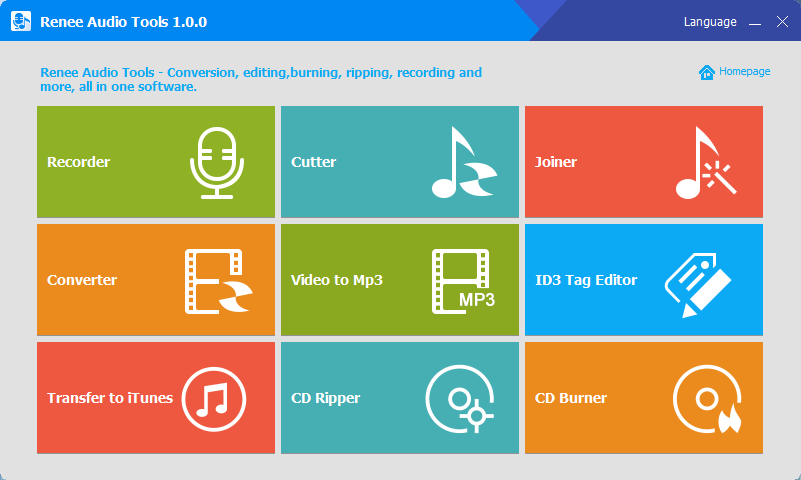
CutterArbitrarily cut and clip audios in MP3, ACC, FLAC and APE formats. Many effects, such as fade in/out, speed adjustment, music mixing and volume adjustment, are available.
ConverterConvert music files between all audio formats, including MP3, M4A, ACC, OGG, AAC, FLAC and the others. It can also convert the video format into MP3.
JoinerMerge music files into one regardless the original file formats. The output format and quality can be set, too.
CD BurnerBurn multiple music files into CD, DVD and also make APE or BIN image file.
Compatible with: Windows 11 / 10 / 8.1 / 8 / 7 / Vista / XP (32bit/64bit)
CutterArbitrarily cut and clip audios in diffrent formats. Many effects, such as fade in/out, speed adjustment, music mixing, are available.
ConverterConvert music files between all audio formats, including MP3, M4A, ACC, OGG, AAC, FLAC and the others. It can also convert the video format into MP3.
RecorderRecord computer sounds from streaming media and microphone at the same time and output into multiple audio formats.
1. Download, install, and open Renee Audio Tools. Select “Converter”.
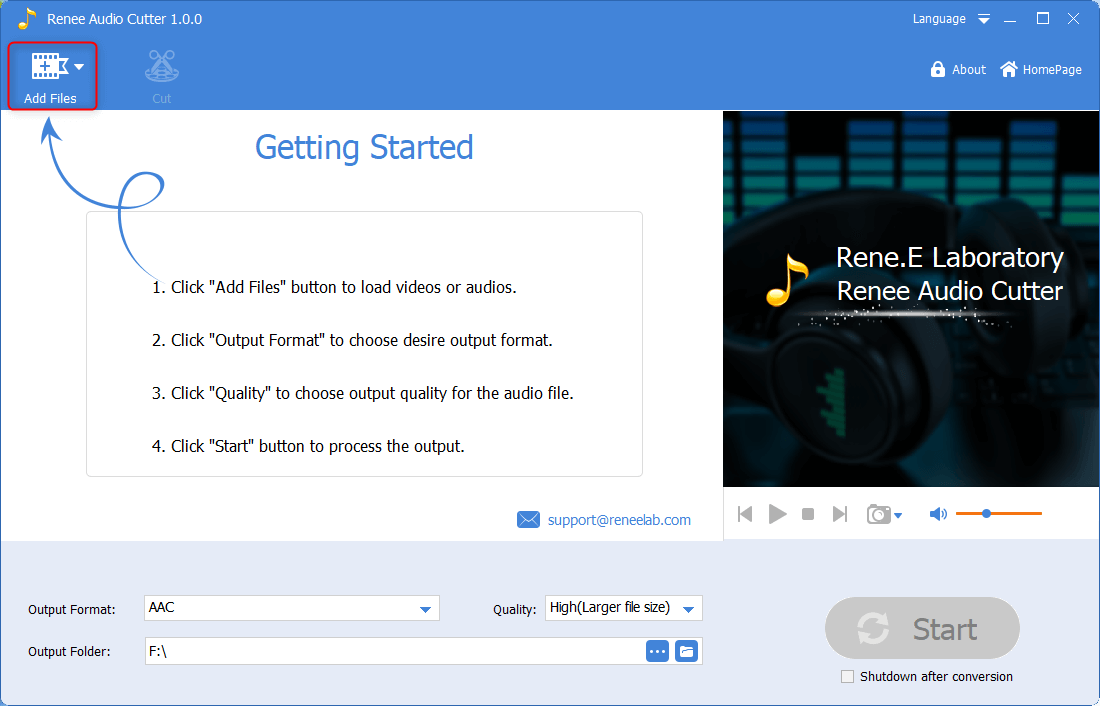
2. Click “Add Files”.
3. Select the music file that needs to be converted, and click “Open”.
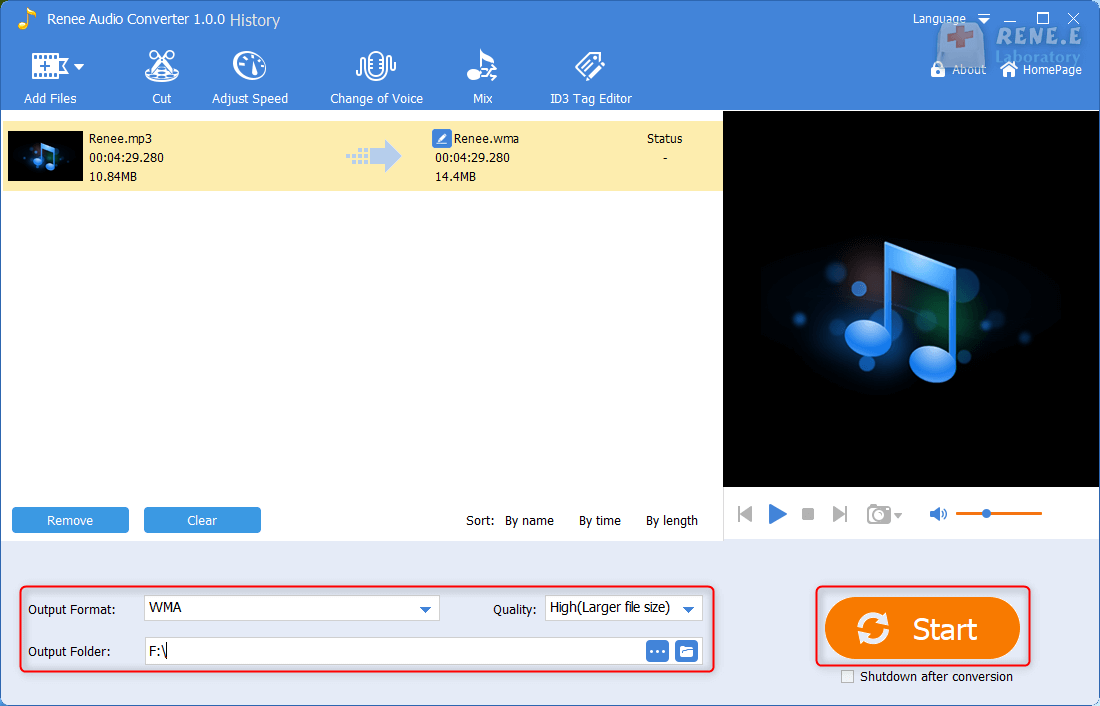
4. Select MP3 in “Output Format”, and manage other settings like “Quality” and “Output Folder”. Next, click the “Start” button.
Use XRECode to convert audio to walkman supported format
XRECode is a powerful audio file format conversion software that streamlines the process of converting audio files to different formats. It supports a wide range of formats, including MP3, WMA, WAV, OGG, APE, and FLACD. With XRECode, you can effortlessly transform your audio files into the format of your choice.
1. Download and install XRECode on the official website.
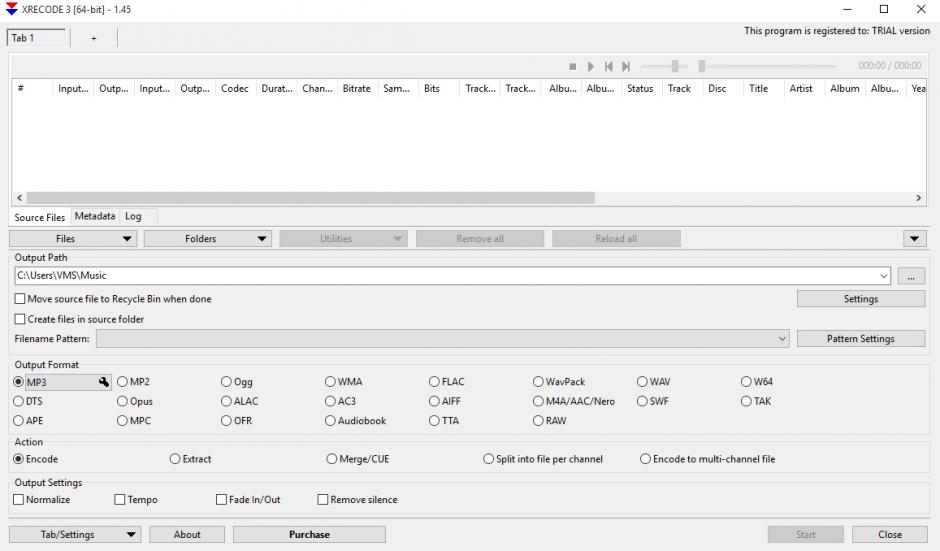
2. To access XRECode, simply open the program and select your language. Next, click on “Trial” to start your 30-day trial period. Keep in mind that this is a paid software, so if you choose not to purchase it after the trial period, you will not be able to continue using XRECode.
3. In the main interface of the software, click “File”, and add the audio file to be converted.
4. After selecting the file, click “Open”.
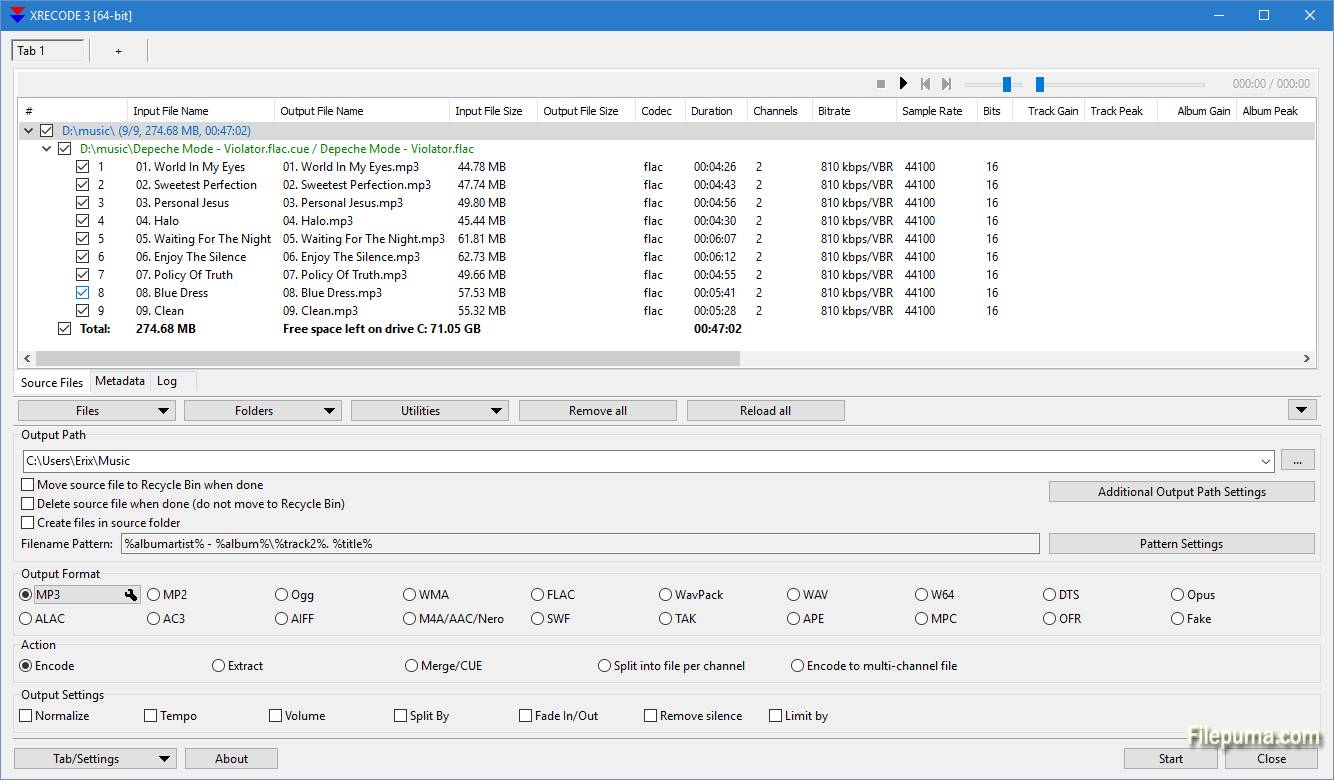
5. Upon opening the file, the primary interface will showcase the fundamental details of the file including its name, size, bit rate, sampling rate, and number of sampling bits. Once the information has been reviewed, simply choose the desired output format, “MP3″, select the “Output Path”, and click “Start” to initiate the conversion process.
limitation: XRECode is a paid software that has a limited time of usage. It solely focuses on format conversion and is unable to fulfill any other audio editing requirements.
Precautions for using walkman
It is important to take note of certain usage guidelines when using a walkman in order to prevent damage to the device, which could lead to malfunction and render it unusable.
1. Take caution when connecting or disconnecting the walkman via USB to avoid damaging the USB plug. Keep the walkman perpendicular to other devices during this process and refrain from shaking it vigorously.
2. To prevent potential hazards, do not drop or submerge the walkman in water, or allow any liquids to enter it.
3. Avoid placing heavy objects on the walkman or subjecting it to strong impacts, as this can result in malfunction or damage.
4. To protect your hearing, it is recommended to use the walkman at a moderate volume








User Comments
Leave a Comment