
Master Audio Editing with Aviutl: Create Stunning Fade In/Out Effects

Summary
Aviutl is a powerful editing software that enhances sound quality, adjusts volume, and offers various features for optimizing audio in your video projects.

Aviutl is a free video editing software that allows users to create and edit video files. With Aviutl you can easily add fade audio effects to your recordings. Wherein, fading in means that the audio volume gradually increases within a period of time, and fading out means that the audio volume gradually decreases. In this article, we’ll teach you how to use Aviutl to edit audio and add fades to your recordings.
Often, one of the most common ways to improve the audio quality of a video is to use fade-in and fade-out audio effects. These effects can make audio appear to be coming in from a distance or to fade in and out over time. They can be used to create a more realistic audio experience for the audience.
In order to set fade in and fade out audio effects in Aviutl, follow these simple steps:
1. Click on the audio track to apply the effect to.
2. Under the Sound FX tab, click the Fade In/Out button.
3. In the Fade In/Fade Out dialog box, set the duration of the fade in and out effect.
4. To configure the fade effect, specify the start and end points of the fade.
5. Click the OK button to apply the fade effect to the audio track.
Although Aviutl is a powerful audio and video editing software and is widely used by professionals. However, there are some limitations of this software that should be considered when working with audio files. First, Aviutl does not support editing certain file formats, including MP3, WAV, and AIFF. Second, Aviutl is not as easy to use as some other editing software and may require a higher level of skill and expertise to use effectively. For this reason, in order to better meet your video/audio editing needs, here are two video/audio editing tools that are more practical and performant.
1. Renee Video Editor Pro
Renee Video Editor Pro is a video recording and editing tool that integrates computer screen recording, video post-production and format conversion functions. Among them, the computer screen recording function can set the recording area and screen size, and can also set the watermark, cursor style, sound source and saved format, automatic recording plan, etc., whether it is online movies, meeting video records, or game screens, software Operation steps, etc., it can help you record and save to the computer with one click.
In addition, this software can further improve and optimize the video content during video post-production, such as editing or merging video clips, cropping video screens, rotating or flipping videos, adding various types of opening/ending animations, and transition effects. Switch between different filter styles, dubbing videos, add music or remove the original sound effects, import or make exclusive subtitles, etc. After the video editing is complete, you can choose to convert the video to various formats you need. This software supports most video and audio formats, such as MXF, AVI, MKV, MP4, MOV, M2TS, M4V, AAC, AC3 and other formats, and supports free conversion between video and audio formats.

Screen RecordingRecord screen and webcam in Windows computer.
Cut Videos & AudiosUsers are free to cut videos and audios clips with setting start and end time.
Multiple Edit ToolsMerge, crop, rotate, cut and transform video easily. Change and add background music, subtitles and remove watermark from video.
Format ConversionSupport to convert videos and audios into different formats.
Screen Recording Record screen and webcam in Windows computer.
Multiple Edit ToolsCut Videos & Audios Users are free to cut videos and audios clips with setting start and end time.
Multiple Edit ToolsMerge, crop, rotate, cut and transform video easily. Change and add background music, subtitles and remove watermark from video.
Format ConversionSupport to convert videos and audios into different formats.
How to use Renee Video Editor Pro to set audio fade effect in video file?
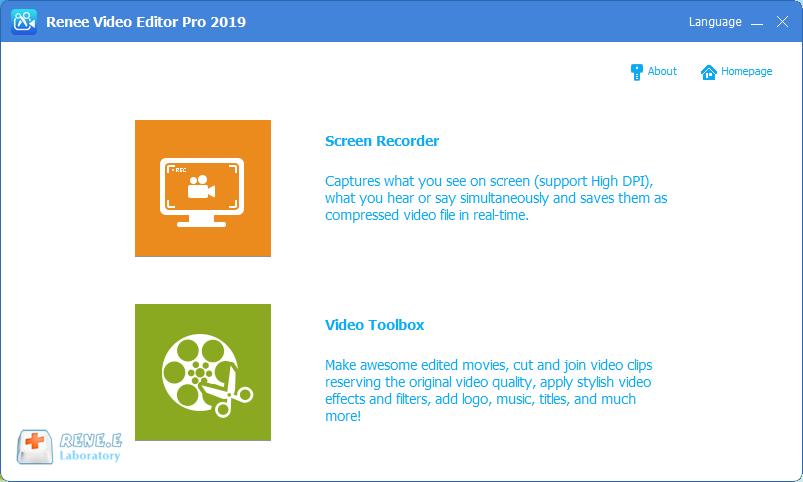
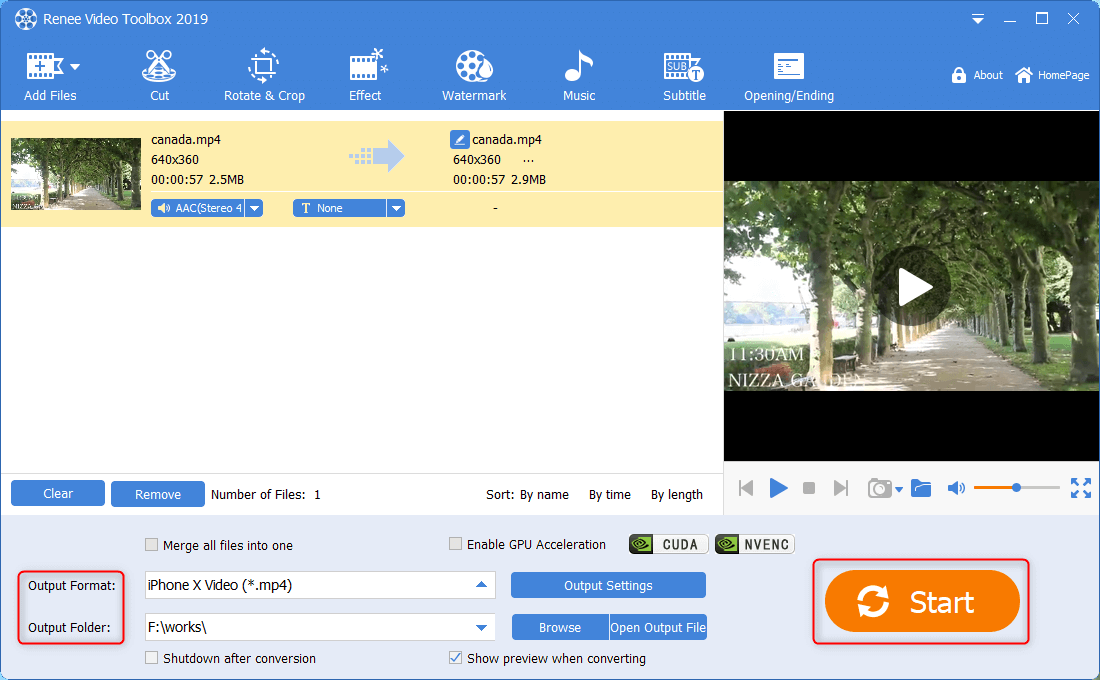
Step 1: After downloading and installing, run Renee Video Editor Pro and select the (Video Toolbox) option.
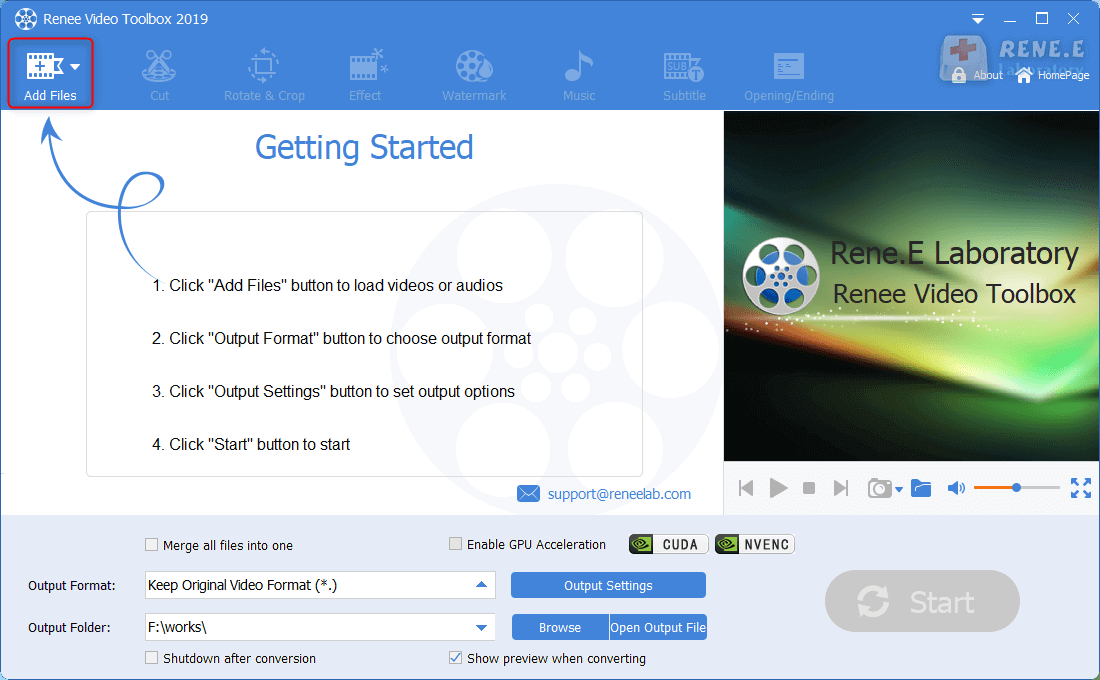
Step 2: Next, find the (Add Files) button and import the video file that needs audio fade adjustment into Renee Video Editor Pro.
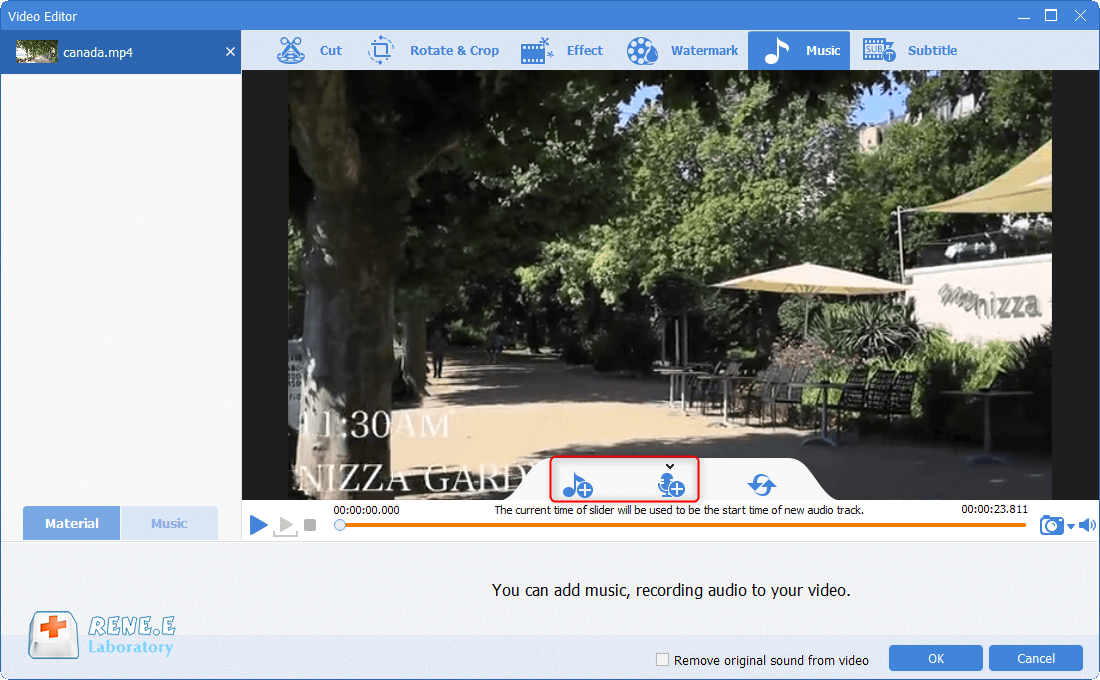
Step 3: After importing video files, find the (Music) option in the top menu bar. Then, you can click the (Add Audio to Video) button to import the audio, and then check the (Fade In) and (Fade Out) options to set the fade in and fade out effect of the audio in the video.
Step 4: After the setting is completed, you can select the format according to different terminal devices or your needs in (Output Format), select the save location in (Output Folder), and click the (Start) button to export The processed video is exported to the set location, which is very fast and convenient.
2. Renee Audio Tools
Renee Audio Tools is a multi-functional audio editing software, as long as you download it, you can have “audio conversion tool”, “audio recording tool”, “audio editing tool”, “CD burning tool” at the same time, it can realize multiple functions at the same time audio editing needs. The software supports all mainstream audio formats, and the conversion is fast without waiting. Compared with online conversion methods, using Renee Audio Tools will be safer and prevent privacy leaks.
Screen RecordingRecord screen and webcam in Windows computer.
Cut Videos & AudiosUsers are free to cut videos and audios clips with setting start and end time.
Multiple Edit ToolsMerge, crop, rotate, cut and transform video easily. Change and add background music, subtitles and remove watermark from video.
Format ConversionSupport to convert videos and audios into different formats.
Screen Recording Record screen and webcam in Windows computer.
Multiple Edit ToolsCut Videos & Audios Users are free to cut videos and audios clips with setting start and end time.
Multiple Edit ToolsMerge, crop, rotate, cut and transform video easily. Change and add background music, subtitles and remove watermark from video.
Format ConversionSupport to convert videos and audios into different formats.
How to use Renee Audio Tools to set fade-in and fade-out effects for audio files?
If you want to set the fade-in and fade-out effect of the audio file, you can use Renee Audio Tools to operate it. Let’s take a look at the detailed operation steps below.
Step 1: After downloading and installing, run Renee Audio Tools, and click the function option of the audio file you want to edit on the main page. Select (cut) as shown below.
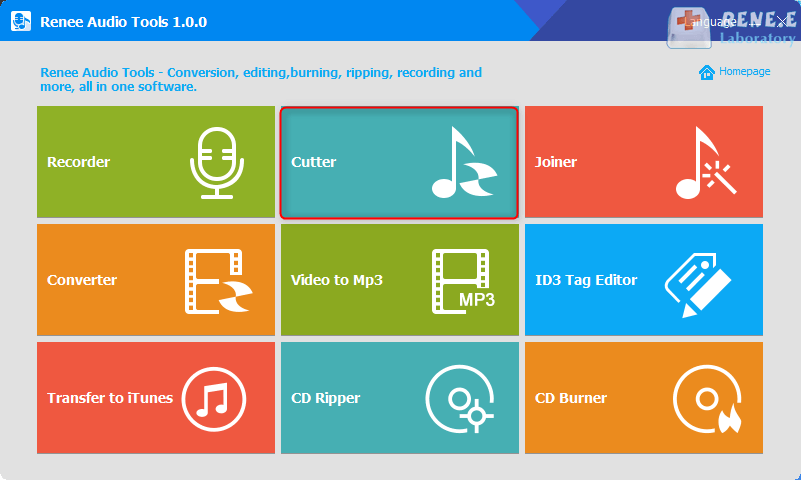
Renee Audio Tools’ functions description:
Recorder: Support recording computer sound and microphone sound.
Cutter: Support cutting audio clips, adjusting audio playback speed, adjusting sound beam and volume, etc.
Joiner: Merge multiple audio files into one complete file.
Converter: It can realize the conversion between various audio file formats, and also provides functional modules such as cutting, adjusting speed, changing voice, mixing, and ID3 editor.
Video to MP3: Convert video to audio formats such as MP3, WAV, AAC, M4A, etc.
ID3 tag editor: Edit the detailed information of audio files, such as song name, artist, album, year, genre, etc.
Transfer to iTunes: Add audio files to iTunes.
CD Ripper: Extract the audio files from the CD and save them to your computer.
CD Burner: Burn audio files from your computer to CD.
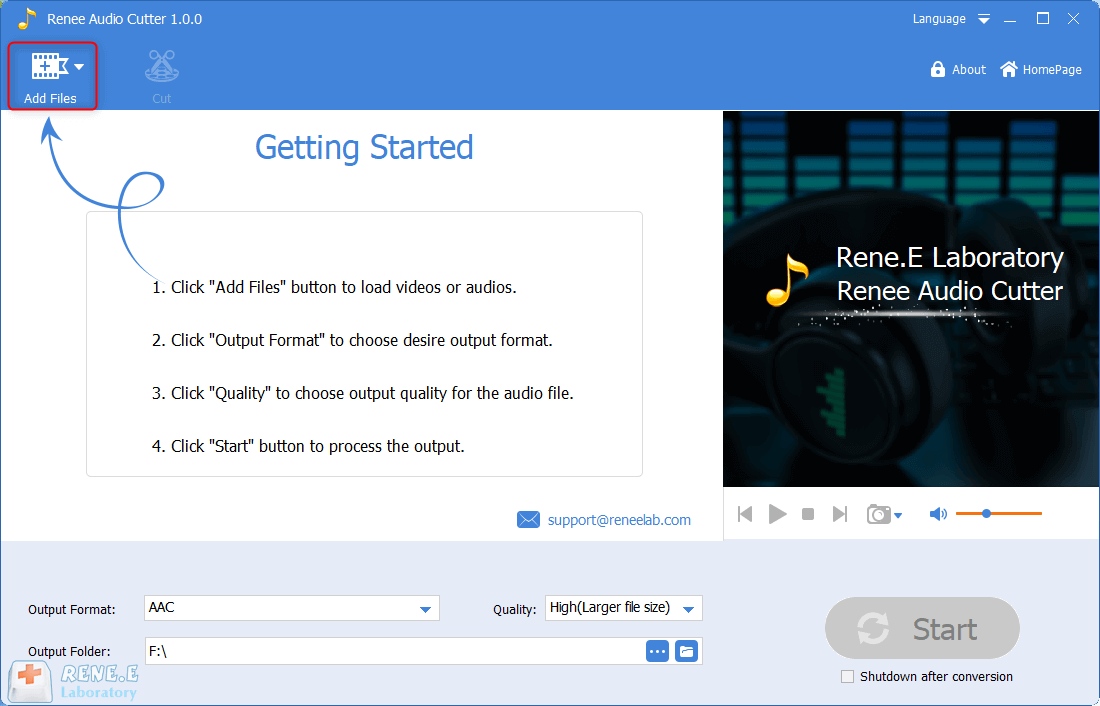
Step 2: Click the (Add Files) button to import the audio file to be edited into the software. Then click (Cut).
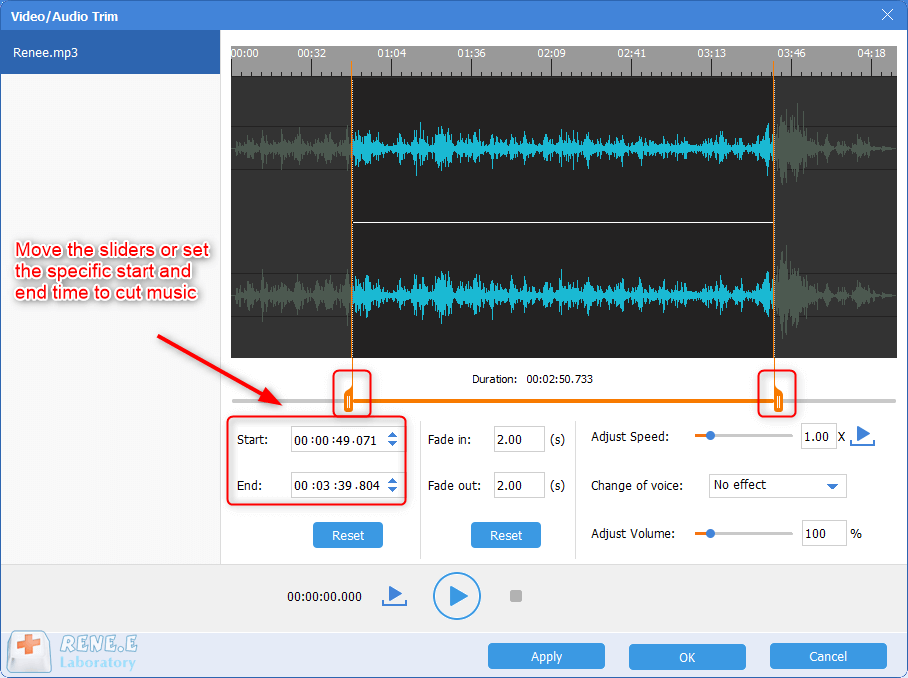
Step 3: In the audio editing window, you can set the fade-in and fade-out of the imported audio, such as setting the duration of fade-in and fade-out. Then click (OK) to save the settings.
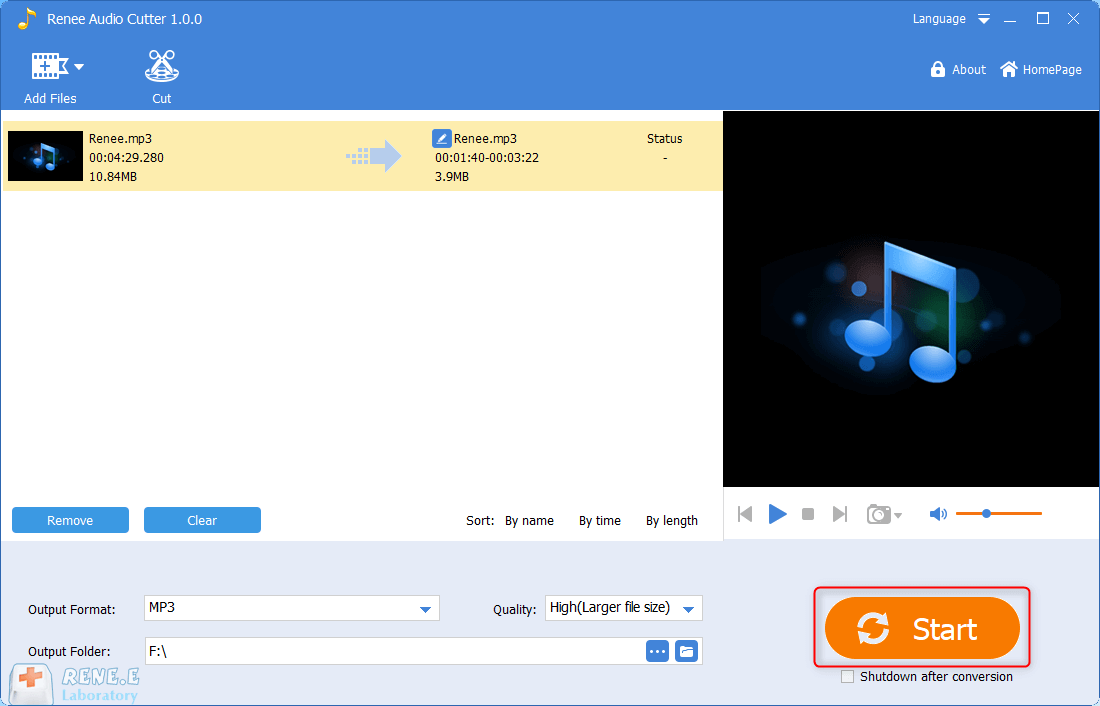
Step 4: After the audio editing is complete, select the audio format you want to save in (Output Format); select the audio quality in (Quality); set the location where the file is saved in (Output Location). Finally, click the (Start) button to save the edited audio file to the preset location according to the set parameters, which is very convenient.
Relate Links :
How to Create Stunning Videos: A Step-by-Step Guide

09-11-2026
Amanda J. Brook : Discover the essential techniques for crafting a captivating and comprehensive video with this expert guide. Gain insights and...
Recommended Video Maker Software: Create Stunning Videos for Free
09-11-2026
Amanda J. Brook : Entdecken Sie kostenlose Videoproduktionssoftware mit umfassenden Funktionen und bequemer Bedienung. Erforschen Sie unsere Top-Auswahl für die Erstellung hochwertiger...
Create Stunning Time-Lapse Videos Effortlessly

09-11-2026
Ashley S. Miller : Master how to make a time lapse video with our comprehensive guide. Learn to capture more content in...


User Comments
Leave a Comment