
How to Increase Video Volume: Step-by-Step Tutorial

Summary
Elevate your video's audio quality with simple, beginner-friendly techniques. Uncover the optimal method to amplify your video's sound for a more impactful experience.
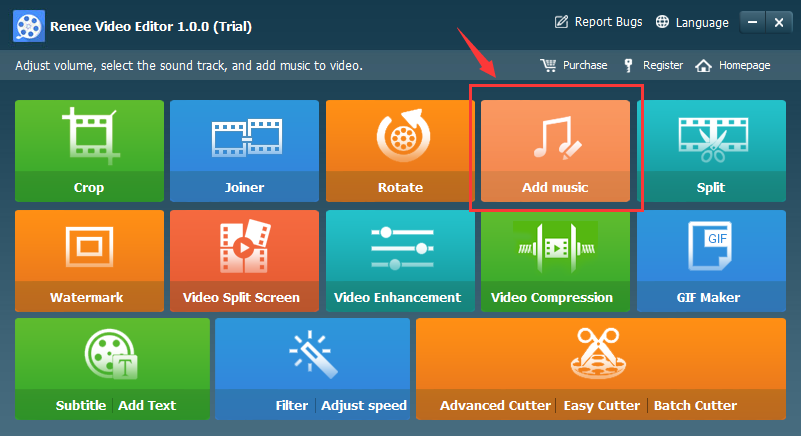
WMV, AVI, MP4, M4A, MOV, and MKV. You can also convert files to formats compatible with different devices. The software offers a range of editing tools, allowing you to merge videos, perform batch editing, crop screens, add subtitles, watermarks, special effects filters, and background music. Additionally, it enables you to convert videos to GIFs and play multiple videos simultaneously on the same screen.

Separate videos with different parametersUsers can separate videos into equal clips by time, size and self-set parameter.
Cut Videos & AudiosUsers are free to cut videos and audios clips by setting start and end time.
Multiple Edit ToolsMerge, crop, rotate, cut and transform video easily. Change and add background music, subtitles and watermark to video.
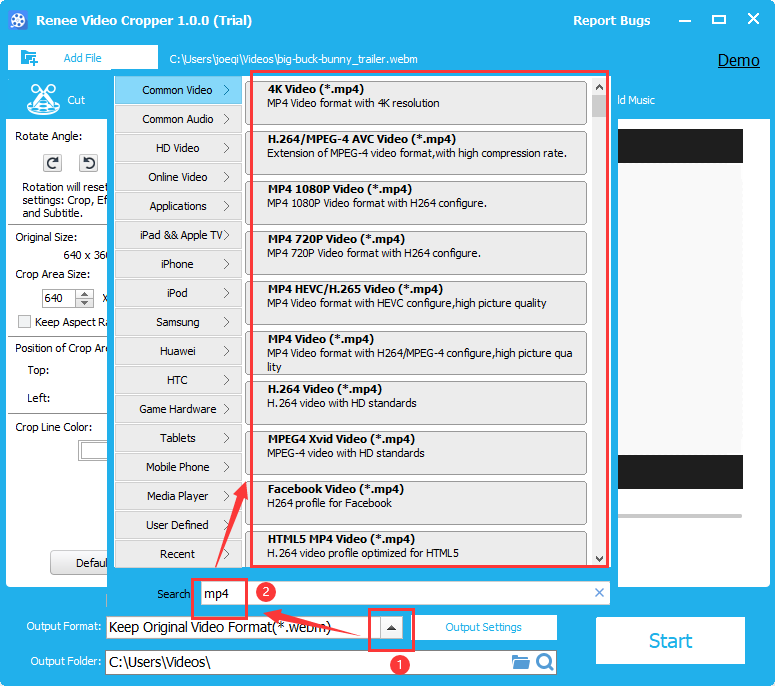
Format ConversionSupport to convert videos and audios into different formats.
Separate videosSeparate videos into equal clips by time, size and self-set parameter.
Cut Videos & AudiosCut videos and audios clips by setting start and end time.
Format ConversionConvert videos and audios into different formats.
Relate Links :
Convert M4V to AVI: A Step-by-Step Tutorial
09-11-2026
Amanda J. Brook : Learn how to convert M4V format to AVI for seamless compatibility with Windows systems. Discover two efficient methods...
Convert FLV to MP4 on MAC: Step-by-Step Guide

09-11-2026
Ashley S. Miller : Learn how to convert FLV to MP4 on MAC with simple and practical methods. Increase your video compatibility...
How To Create Stunning Split Screen Videos with DaVinci Resolve: A Step-by-Step Guide

09-11-2026
John Weaver : Learn how to create stunning split-screen videos using DaVinci Resolve, a renowned professional video editing software. Master video/audio...


User Comments
Leave a Comment