
How to Record Steam Gameplay?

Summary
Steam is one of the biggest gameplay platforms where we can buy, play and share games. Sometimes, we need to record the gameplay on Steam when we are going to share the skills and the experiences to the other players. How to record gameplay on Steam?



Screen RecordingRecord screen and webcam in Windows computer.
Cut Videos & AudiosUsers are free to cut videos and audios clips with setting start and end time.
Multiple Edit ToolsMerge, crop, rotate, cut and transform video easily. Change and add background music, subtitles and remove watermark from video.
Format ConversionSupport to convert videos and audios into different formats.
Screen Recording Record screen and webcam in Windows computer.
Multiple Edit ToolsCut Videos & Audios Users are free to cut videos and audios clips with setting start and end time.
Multiple Edit ToolsMerge, crop, rotate, cut and transform video easily. Change and add background music, subtitles and remove watermark from video.
Format ConversionSupport to convert videos and audios into different formats.
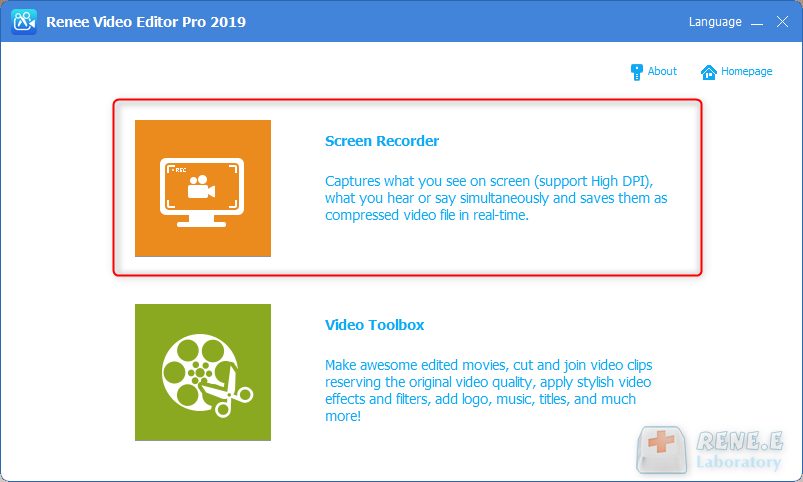
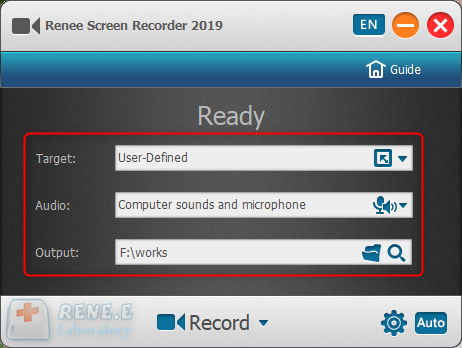
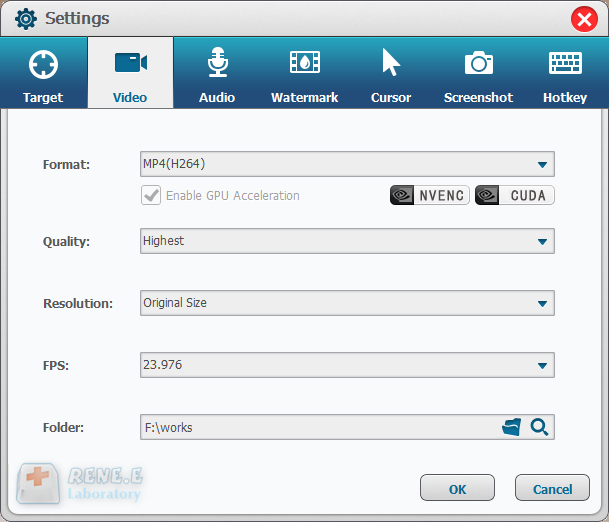
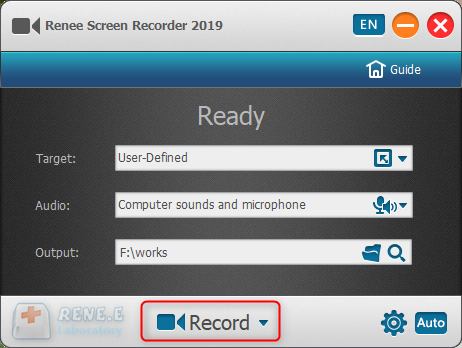
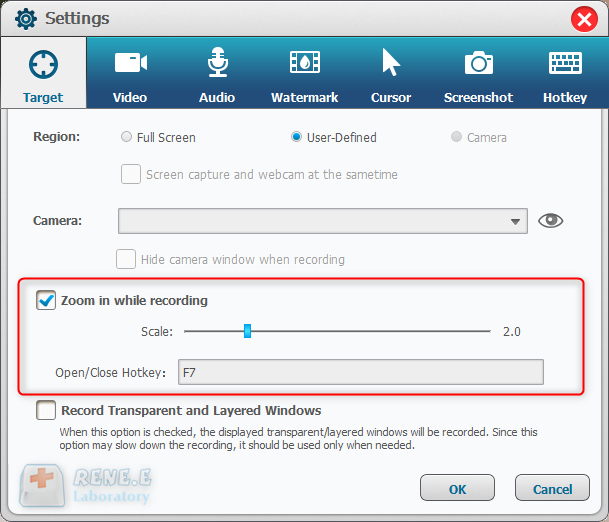
In this function, users can zoom in the record area around the mouse, enlarging 1.5x to 4x scale in proportion. It is used to emphasize the key point during desktop record. The default hotkey is F7.
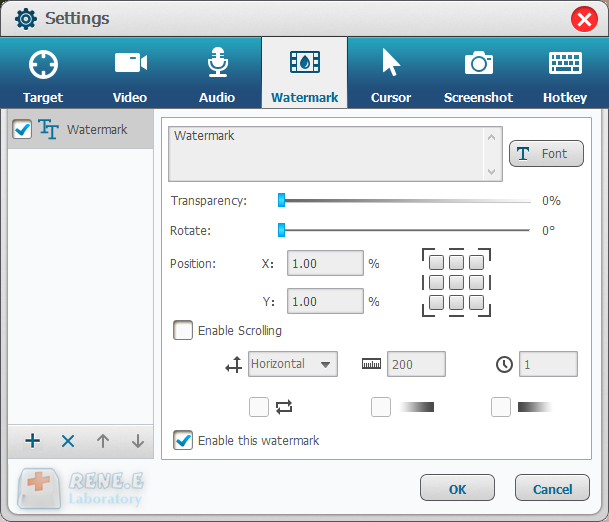
Users can add text and image to the records. Besides, transparency, rotation, position and animation can be adjusted for the watermark.
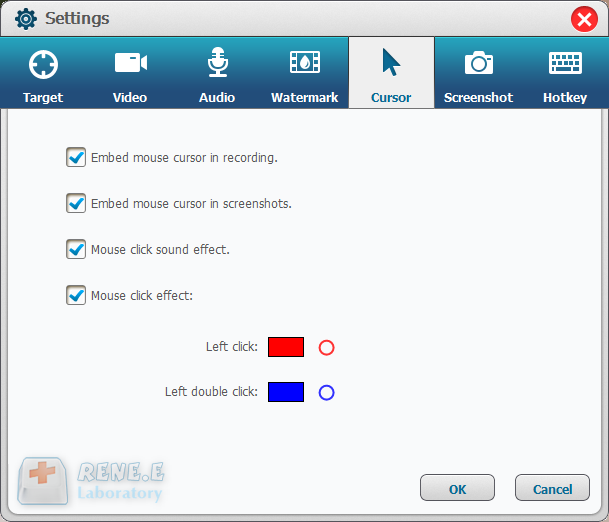
This is a useful function to monitor the mouse movement during desktop record. It provides different cursor effects and automatically generates the effects of single and double clicks. That can facilitate teaching videos and the other explanation videos.
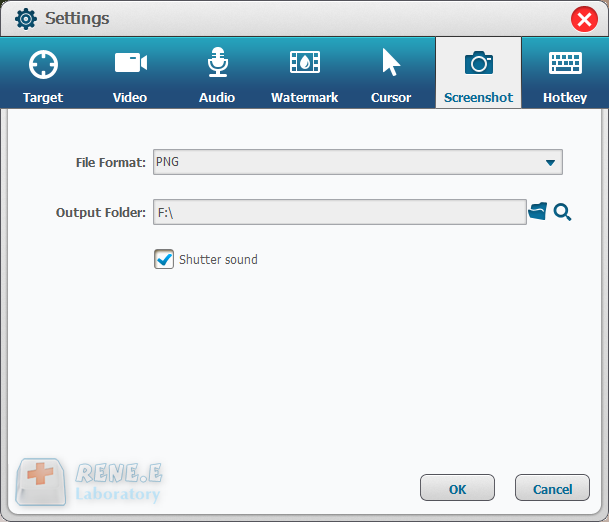
Renee Video Editor Pro supports to screenshot at any time even if you don’t have the PC desktop recorded. The default hotkey is CTRL+ALT+F4. The output format of the screenshots can be set.
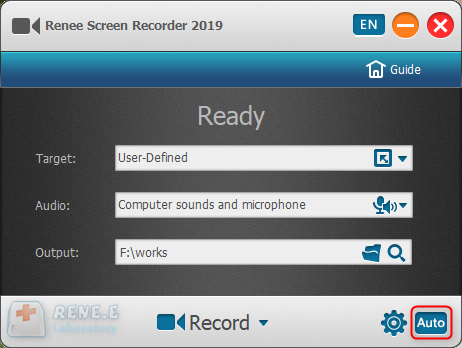
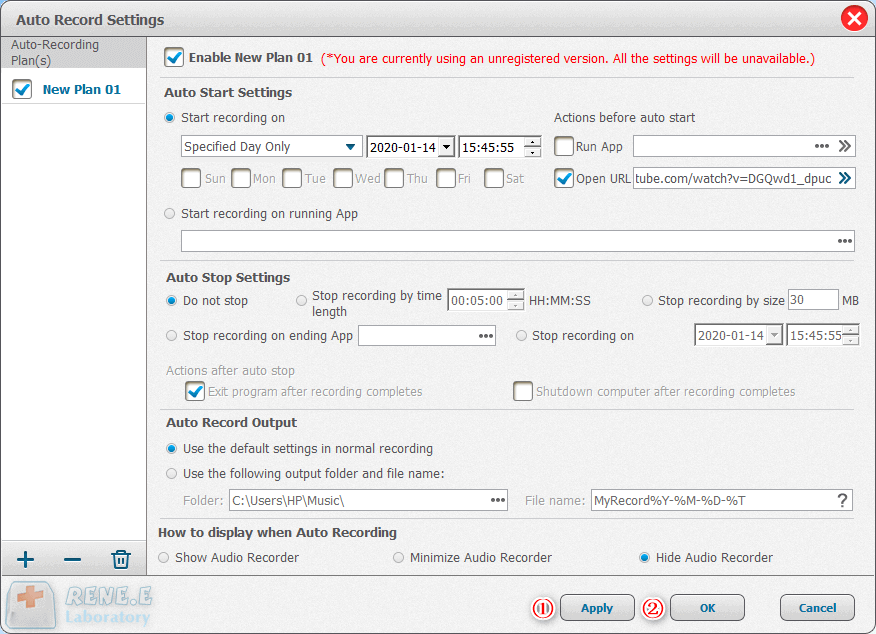
Given to the different needs of desktop record, Renee Screen Recorder allows users to set the auto recording schedule. The desktop record can automatically run at the specific time and the other conditions. It can be used to record the arranged online meetings and live shows. Go to try this function at the right corner of the main interface.



Relate Links :
Fix Screen Tearing and Boost Game Performance with Vertical Sync
09-11-2026
Amanda J. Brook : Learn how to optimize your game performance and solve screen tearing issues by enabling vertical synchronization. Discover other...
How to Effortlessly Convert MP4 to WEBM in Windows?
09-11-2026
Amanda J. Brook : Learn how to convert MP4 files into WEBM files in Windows and explore the benefits of using the...
Download Free Intros for a Video - Your Ultimate Guide
09-11-2026
Amanda J. Brook : Explore a curated selection of websites featuring an array of free title templates to enhance your videos. Dive...


User Comments
Leave a Comment