
How to record twitcasting videos and audios?

Summary
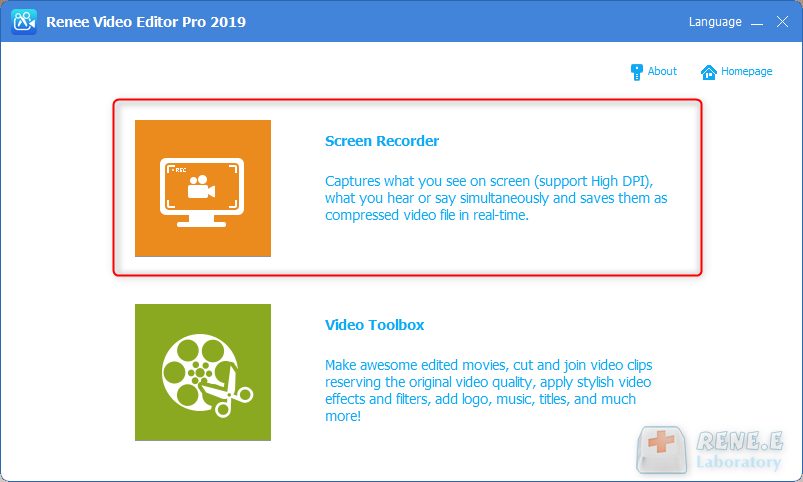
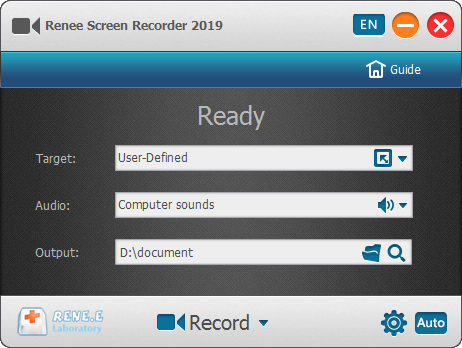
Twitcasting is one of the most popular live streaming platforms in Japan, with countless users and viewers. Sometimes, when users see some interesting live broadcasts, they want to download and save these live broadcast images and sounds together, but they don't know how to do it. The following will introduce the method of recording Twitcasting audio and video in detail.


Screen RecordingRecord screen and webcam in Windows computer.
Cut Videos & AudiosUsers are free to cut videos and audios clips with setting start and end time.
Multiple Edit ToolsMerge, crop, rotate, cut and transform video easily. Change and add background music, subtitles and remove watermark from video.
Format ConversionSupport to convert videos and audios into different formats.
Screen Recording Record screen and webcam in Windows computer.
Multiple Edit ToolsCut Videos & Audios Users are free to cut videos and audios clips with setting start and end time.
Multiple Edit ToolsMerge, crop, rotate, cut and transform video easily. Change and add background music, subtitles and remove watermark from video.
Format ConversionSupport to convert videos and audios into different formats.
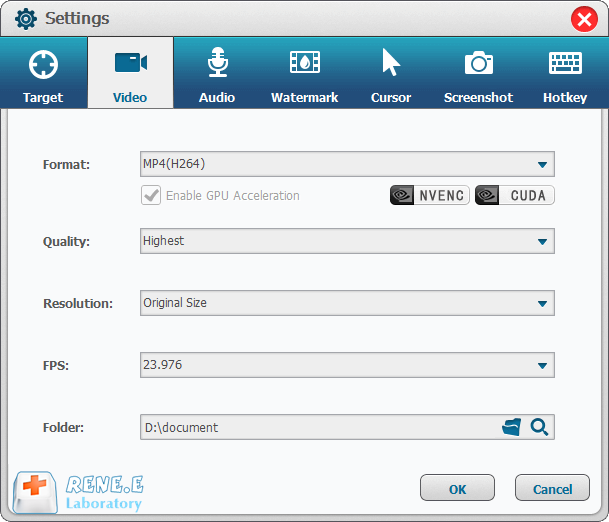
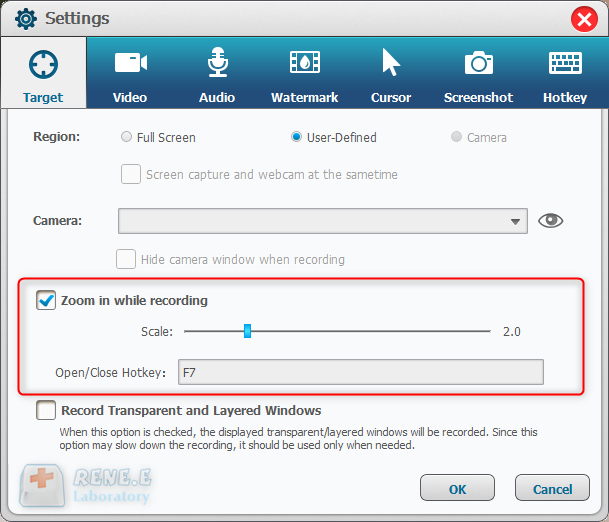
Focus zoom allows users to zoom in on the screen with the mouse as the focus during video recording. The function supports a zoom ratio of 1.5 to 4 times, enabling users to highlight the key points of the video in some specific recording needs. The default key for this function is F7.
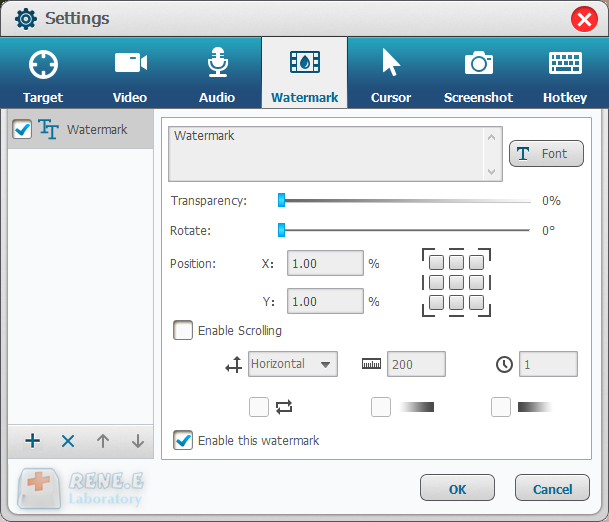
The software supports text watermarks and image watermarks. After clicking the “+” button in the lower left corner to add a watermark, you can adjust the transparency, rotation angle, position, etc. of the watermark, and you can also set the mobile display effect of the watermark.
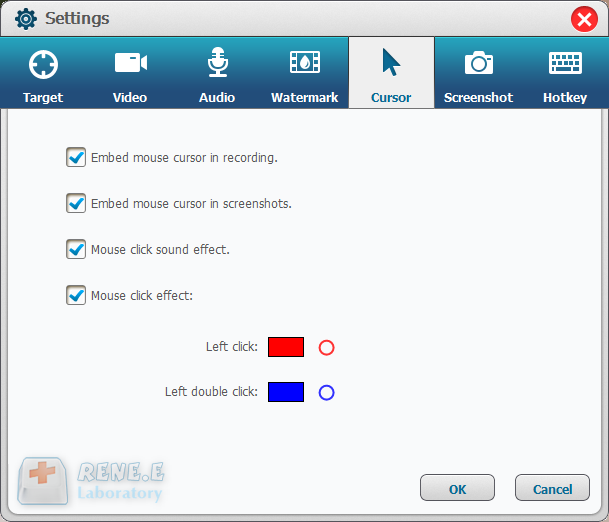
The mouse tracking function can monitor the movement of the mouse during the recording process, not only can selectively record the movement track of the cursor, but also can automatically add special effects when the mouse is clicked/double-clicked in the generated video, which is useful for teaching videos. It can bring a lot of convenience when waiting for the recording needs of key explanations to the audience.
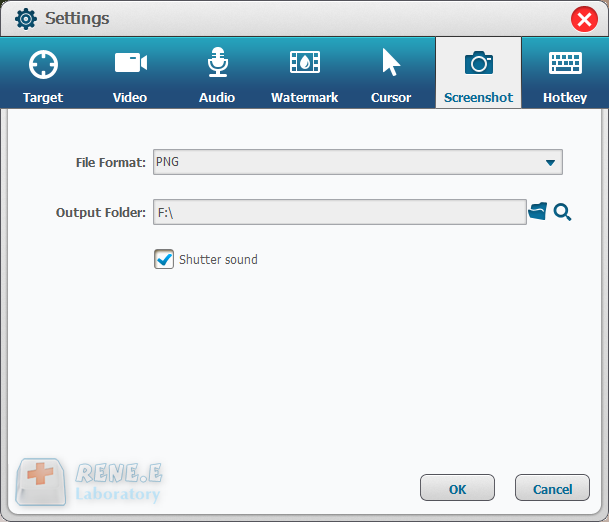
Regardless of whether the video is being recorded or not, the software can perform screenshot operations (the default shortcut key is CTRL+ALT+F4), and the user can set the output image format.
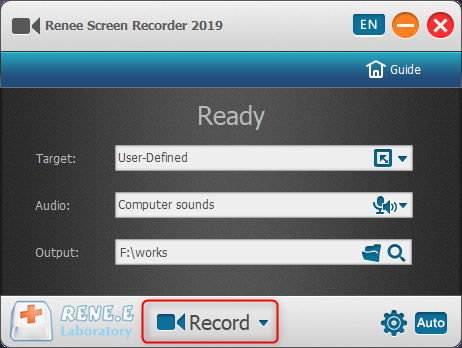
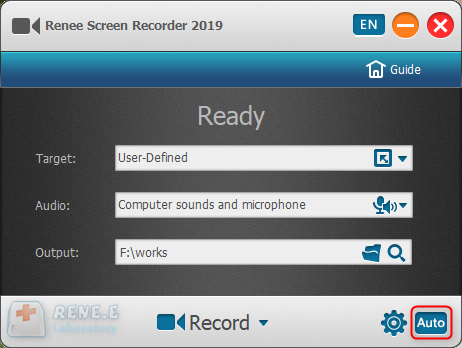
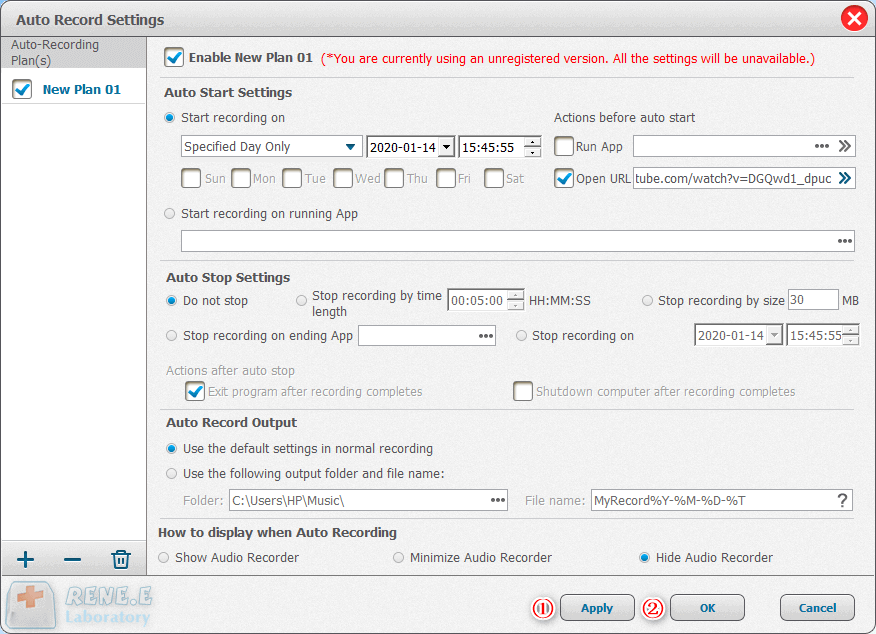
According to different recording needs, the software can trigger the recording of video sources at a specific time and under specific conditions, making it possible for actual scenario applications such as scheduled recording of network conferences and programs. The settings related to automatic recording can be entered in the lower right corner of the main interface of the software.
Relate Links :
Video Cropper: How to Edit Video without Loss and Remain Audios and Videos Synchronized

09-11-2026
John Weaver : If you want to crop video without loss, it is necessary for you to pick up a piece...
09-11-2026
Amanda J. Brook : Discover reliable video material websites that offer a wide range of options. Don't struggle to find videos anymore...
Recommended Video Maker Software: Create Stunning Videos for Free
09-11-2026
Amanda J. Brook : Entdecken Sie kostenlose Videoproduktionssoftware mit umfassenden Funktionen und bequemer Bedienung. Erforschen Sie unsere Top-Auswahl für die Erstellung hochwertiger...