Rotate Video with Windows Media Player – Quick & Easy Solution
21 August 2023Amanda J. Brook Senior Product Manager
Last update by William Davis at 9 November 2026
Summary Discover how to rotate videos on Windows Media Player and solve the distressing issue of horizontal or upside-down playback on your smartphone.
Windows Media Player is a free multimedia player developed by Microsoft Corporation. It offers various functions such as burning, ripping, syncing, streaming, and more. However, it lacks the capability to rotate videos. To fulfill this need, I will recommend two alternative tools.
Renee Video Editor Pro is a comprehensive video recording and editing tool. It offers features such as computer screen recording, video post-production, and format conversion. With the ability to customize recording area, screen size, watermark, cursor style, sound source, and saved format, it is suitable for capturing online movies, meeting videos, game screens, and software operation steps. Simplify your recording process and save directly to your computer.
This software enhances video content in post-production, including editing and merging clips, cropping screens, rotating or flipping videos, adding opening/ending animations and transition effects. It also offers options to switch filter styles, dub videos, add or remove music and sound effects, import or create subtitles, and more.
Renee Video Editor Pro – Multi-function Video Editing Software
Screen RecordingRecord screen and webcam in Windows computer.
Cut Videos & AudiosUsers are free to cut videos and audios clips with setting start and end time.
Multiple Edit ToolsMerge, crop, rotate, cut and transform video easily. Change and add background music, subtitles and remove watermark from video.
Format ConversionSupport to convert videos and audios into different formats.
Screen Recording Record screen and webcam in Windows computer.
Multiple Edit ToolsCut Videos & Audios Users are free to cut videos and audios clips with setting start and end time.
Multiple Edit ToolsMerge, crop, rotate, cut and transform video easily. Change and add background music, subtitles and remove watermark from video.
Format ConversionSupport to convert videos and audios into different formats.
32321 users have downloaded and edited videos with fun!
How to rotate video with the help of Renee Video Editor Pro?
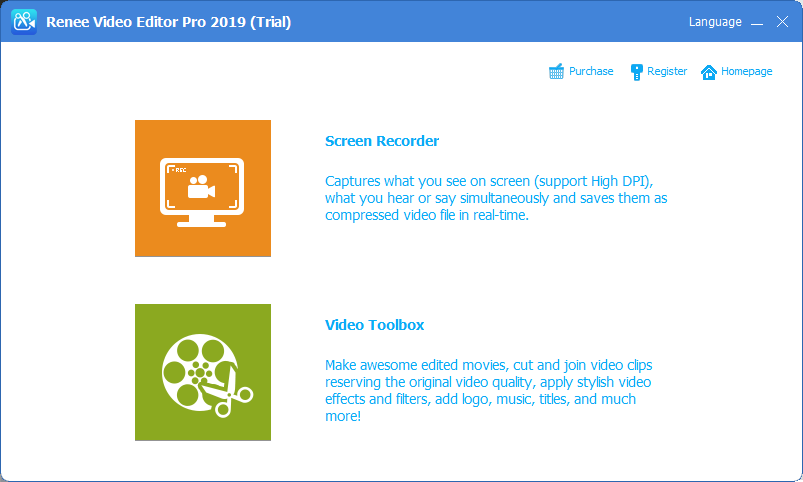
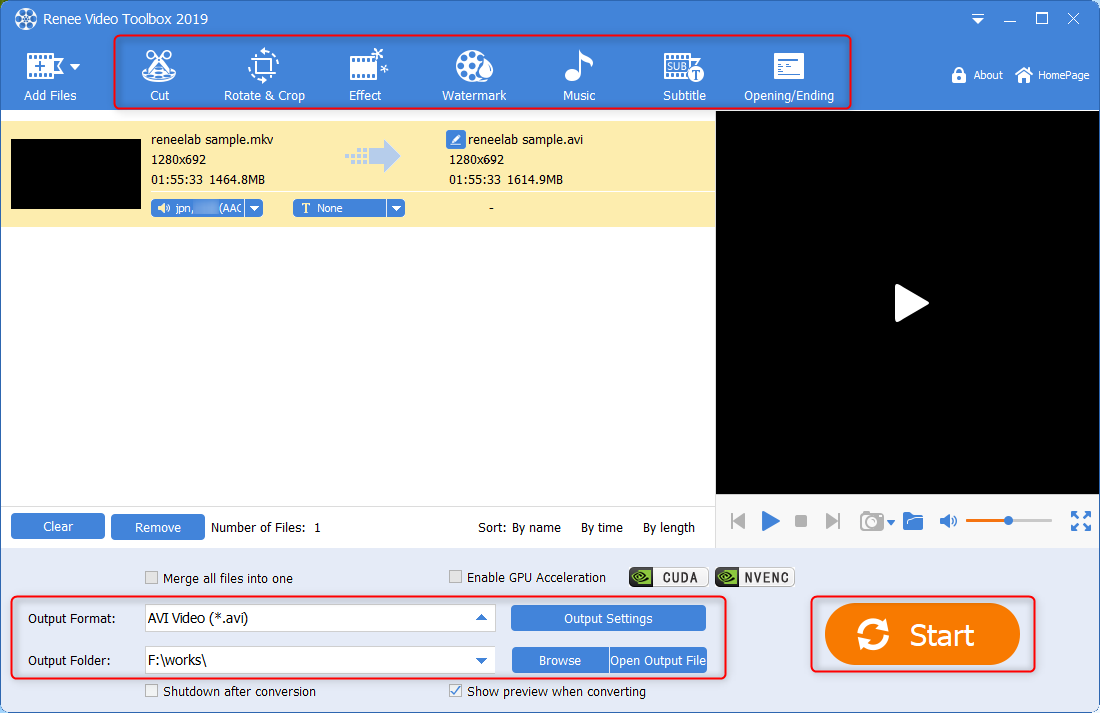
Step 1: After downloading and installing, run Renee Video Editor Pro. Click the (Video Toolbox) button to enter the video editing interface.
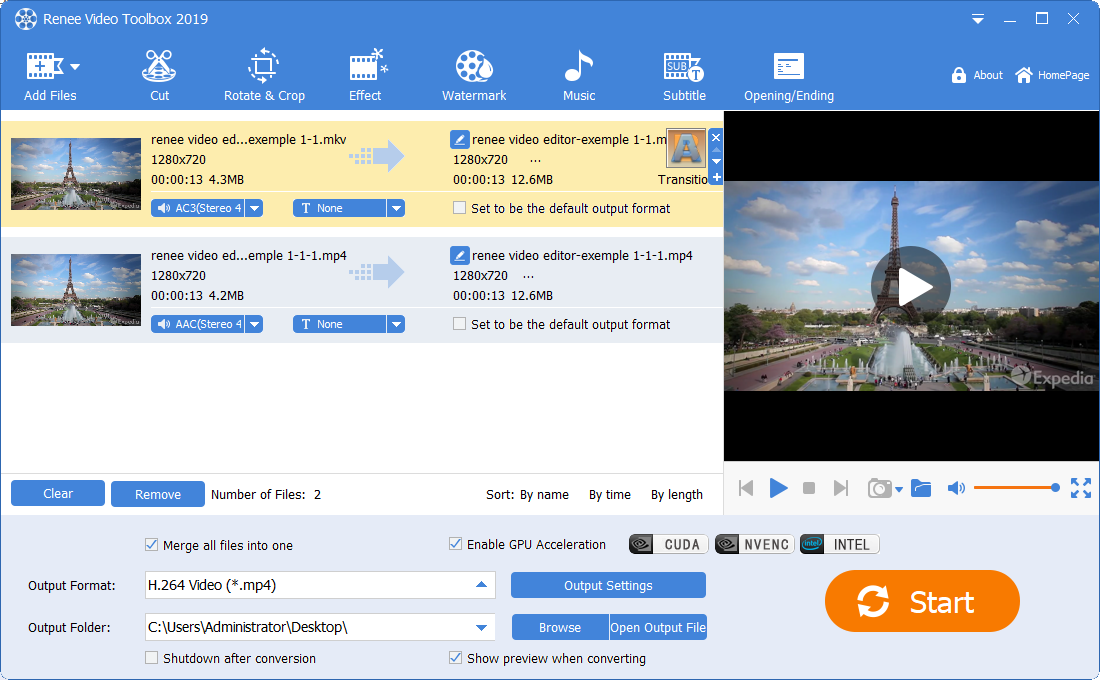
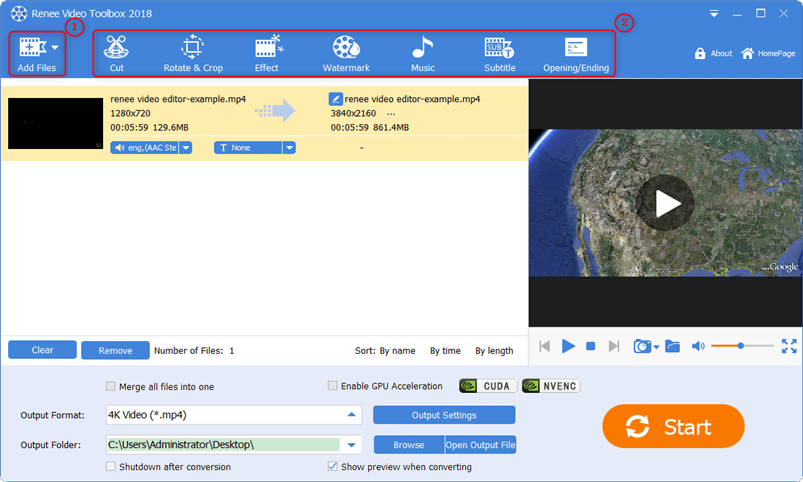
Step 2: Next click the (Add Files) button and import the video file into Renee Video Editor Pro.
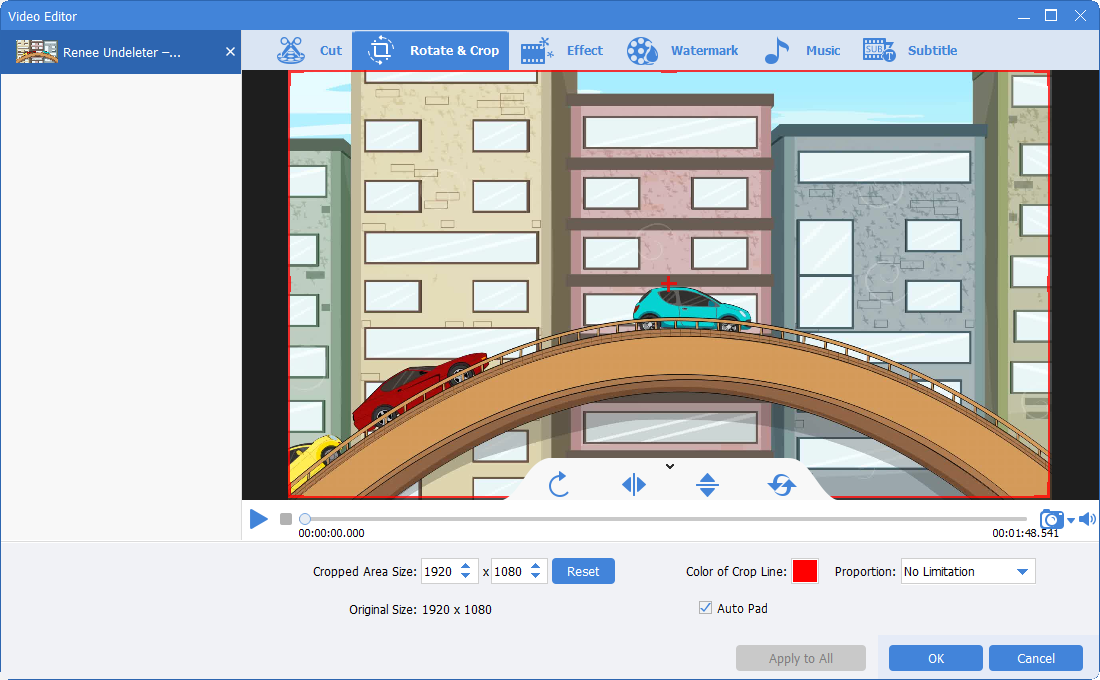
Step 3: After the video file is added, find and select the (Rotate & Crop) function in the top menu bar.
Step 4: Rotate the added video file to the right by 90°/180°/270° using the rotate button above the video playback scroll bar. Click OK to return to the software editing homepage after the operation is completed.
Step 5: After completing the video file editing, select the suitable video format in the Output Format section according to your requirements or terminal devices. Then, simply click the Start button to quickly and conveniently save the edited video file to the specified location.
In addition to rotating the video, you can edit the added video files using various functions in the top menu bar, including cutting, applying special effects, adding watermarks, inserting music and subtitles, and adding opening/closing scenes.
Editing functions of Renee Video Editor Pro:
Cut: Trim video clips; adjust the playback speed.
Rotate & Crop: Rotate the video 90/180/270 degrees clockwise, flip the video horizontally or vertically; crop the size of the video screen.
Effect: Add filter effects, zoom effects or volume effects to your video.
Watermark: Add text, pictures, video or graphic watermarks to video files; you can also remove watermarks from videos.
Music: You can import audio files into the video, or directly record the sound of the computer or microphone and import it into the video; it can also record the original audio of the video.
Subtitle: Import or create subtitles into the movie, and customize the position, font and size of subtitles.
Opening/Ending: You can add pictures or videos as titles or trailers, set the duration and transition effects of titles and trailers, add text to titles and trailers, and support adjusting the color and font size of text, etc.
2. Rotate video with Windows Movie Maker
Windows Movie Maker, developed by Microsoft Corporation, is a free video editing software. It offers practical functions like video editing, cutting, merging, adding music, special effects, themes, and adjusting playback speed. Its simple operation makes it highly popular among Windows users. Now, let’s learn how to rotate a video using Windows Movie Maker.
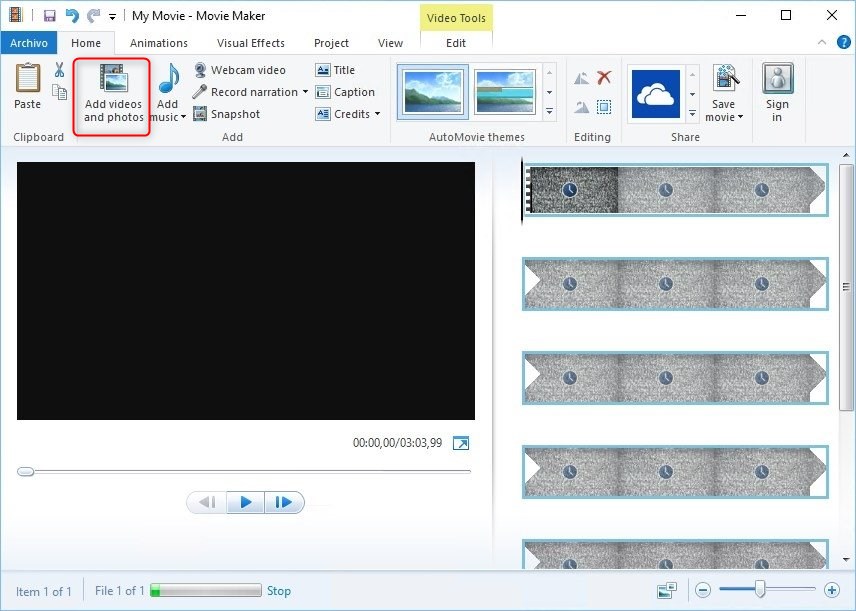
Step 1: Open the Windows Movie Maker software, find the (Add videos and photos) button in the top menu bar, and import the video you want to rotate into the software.
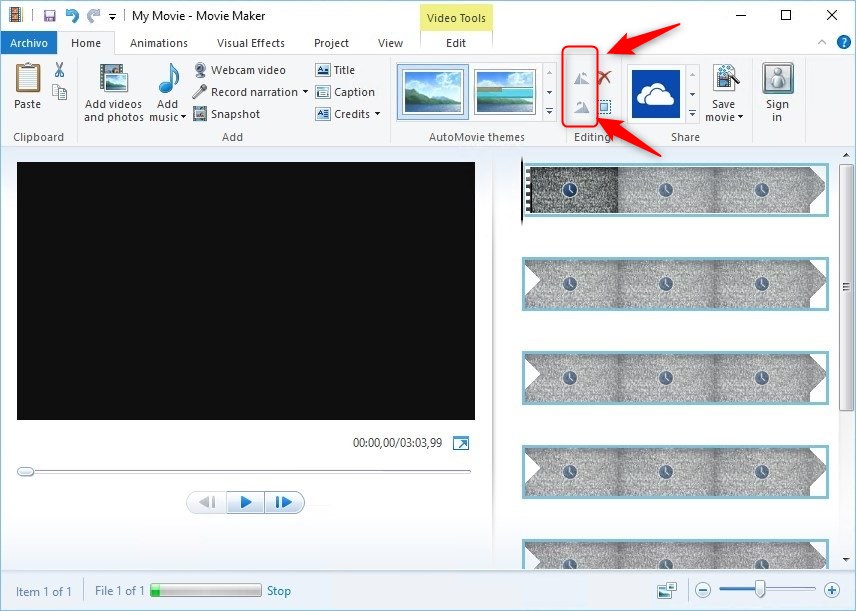
Step 2: After uploading the video, simply locate and select the rotation button. This will activate the video’s “rotate left” and “rotate right” commands, allowing you to rotate the video by 90 degrees in either direction.
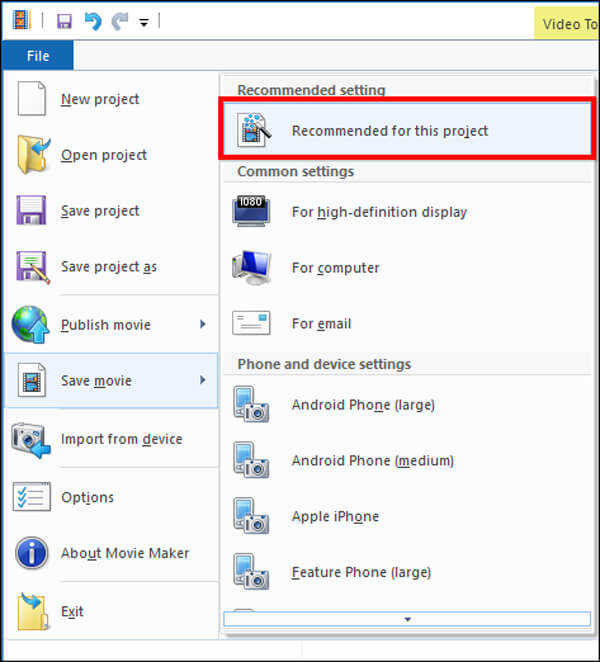
Step 3: Navigate to (File)-(Save movie)-(Recommended for this project) in the top menu bar, and save the edited video to the preset location.
The editor strongly recommends using Renee Video Editor Pro instead of Windows Movie Maker due to its discontinued support and potential software crashes and content failures.
Amanda J. Brook : A professional video resolution converter can resolve issues like black borders, stretching, and blurred content caused by inconsistency...






User Comments
Leave a Comment