3 July 2023Jennifer Thatcher Technology Manager of Test Dept.
Last update by James Smith at 9 November 2026
Summary Learn how to convert mov to wmv format and follow our step-by-step guide to efficiently convert MOV files to WMV using a reliable format converter.
The MOV format is a multimedia container developed by Apple that supports video, audio, text, images, subtitles, and effects in a single file. It offers optimal playback in QuickTime Player and is the native format for iOS devices like the iPhone and iPad. Additionally, MOV files are compatible with Sony PSP and DVD players. The International Organization for Standardization adopted MOV as the foundation for the MPEG-4 file format.
The WMV format is popular for its compatibility across many devices and platforms, including Mac and Windows. It produces smaller file sizes after compression, with minimal loss in video quality, making it ideal for internet playback and sharing.
Converting MOV to WMV is necessary for better compatibility and support on devices that may not support MOV natively. For instance, to use Windows Movie Maker or when the required codec isn’t installed on a Windows computer, converting MOV to WMV is essential for playback and editing.
II. How to convert MOV file format to WMV
To convert MOV to WMV, you have the option to use online converters such as Convertio or software like Renee Video Editor Pro, offering different features from those available in VLC Media Player.
Local Video Editor: Renee Video Editor Pro
Renee Video Editor Pro is a versatile video editing software that goes beyond simple format conversion. This powerful tool includes a comprehensive suite of editing features and boasts compatibility with an extensive range of audio and video formats, such as AVI, MKV, MP4, MOV, M2TS, and M4V.
Renee Video Editor Pro – Multi-function Video Editing Software
Screen RecordingRecord screen and webcam in Windows computer.
Cut Videos & AudiosUsers are free to cut videos and audios clips with setting start and end time.
Multiple Edit ToolsMerge, crop, rotate, cut and transform video easily. Change and add background music, subtitles and remove watermark from video.
Format ConversionSupport to convert videos and audios into different formats.
Screen Recording Record screen and webcam in Windows computer.
Multiple Edit ToolsCut Videos & Audios Users are free to cut videos and audios clips with setting start and end time.
Multiple Edit ToolsMerge, crop, rotate, cut and transform video easily. Change and add background music, subtitles and remove watermark from video.
Format ConversionSupport to convert videos and audios into different formats.
32321 users have downloaded and edited videos with fun!
Conversion steps using Renee Video Editor Pro:
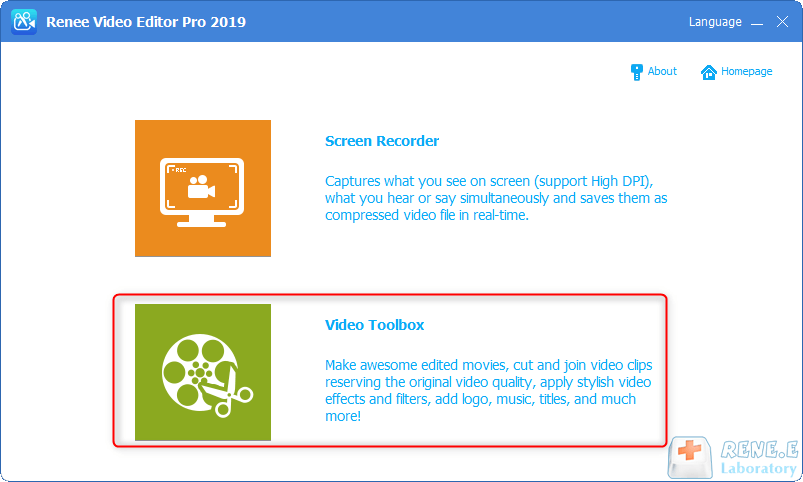
① First, download and install Renee Video Editor Pro on your computer. Open the software, and select “Video Toolbox” to enter.
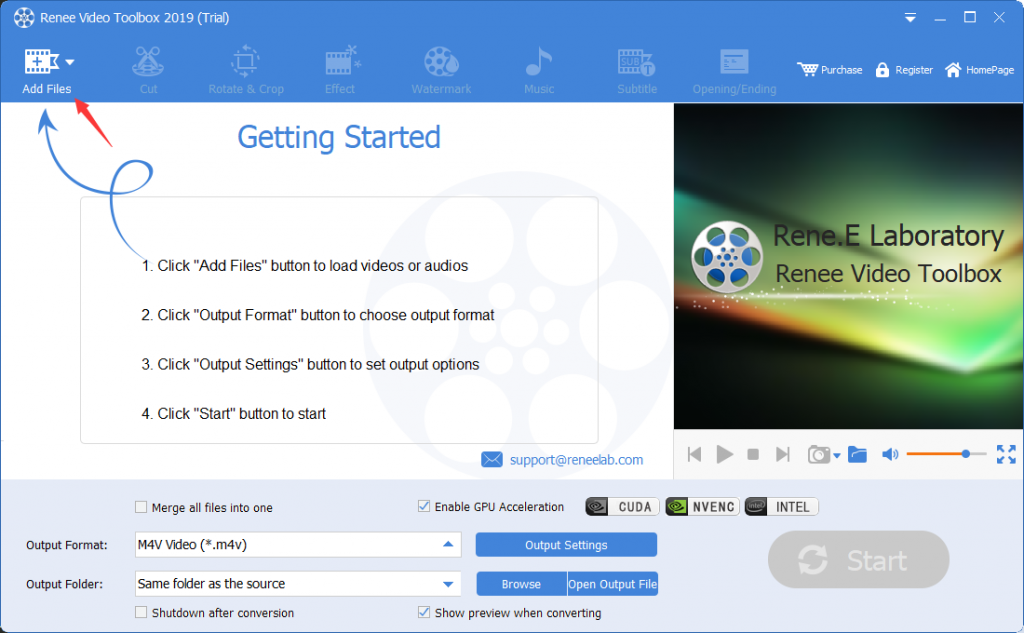
② Enter the video editing page, and click “Add Files” to upload the video file.
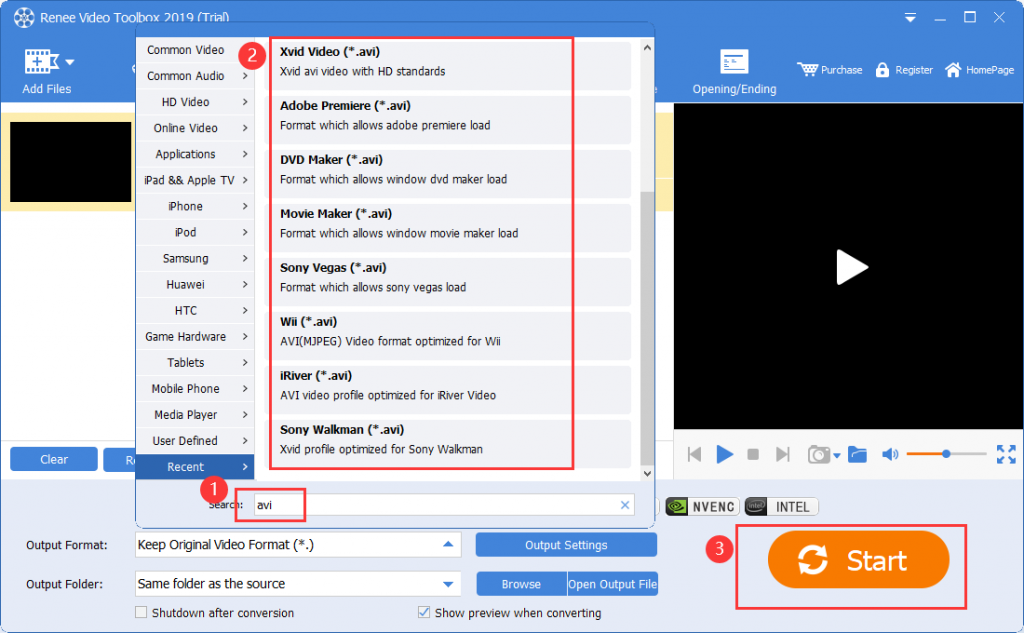
③ Select the AVI video format in the output format column; Select the location to save the video in the output folder. Finally, click the “Start” button to convert successfully and save.
Local video editor: VLC Media Player
VLC is a popular video player that also supports video format conversion with straightforward steps:
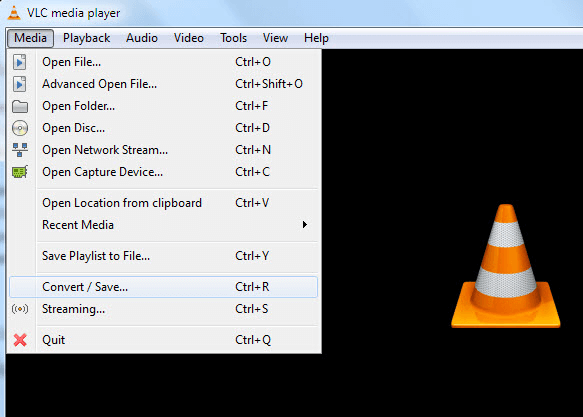
① Download and open VLC software, click “Media” > “Convert/Save” in the menu bar.
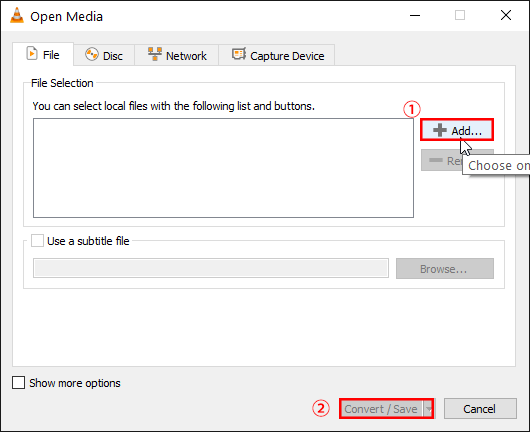
② In the new window, click “Add” to select the MOV file to be converted, and click “Convert/Save“.
③ Finally, in the “Configuration File” option, select the WMV video format to be converted, and in the “Target File”, click “Start“.
Online Video Converter: Convertio
Conversion link: https://convertio.co/mov-wmv/
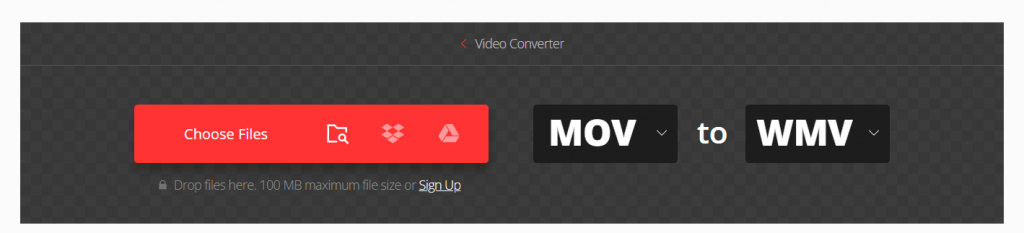
Convertio provides a convenient online video conversion tool that simplifies the process of converting videos without the need for any software download. This tool is capable of converting MOV to WMV and accommodates a variety of other video and audio formats. Be aware that there is a 100 MB file size limitation for MOV videos, and the speed of upload and download may vary depending on your internet connection, potentially affecting the conversion time.
To convert your files using Convertio, follow these steps:
① Paste the converter link in the browser address bar and press Enter to open it. Then click “Choose Files“.
②After the upload is complete, click “Convert”, and click “Download” after the conversion is complete. If you need to convert multiple files, please click “Add more files” to upload video files in batches.
Kind tips After the format conversion is completed, if you still need to edit it such as cutting, cropping, etc., you can also use Renee Video Editor Pro to achieve it.
III. How to edit video files
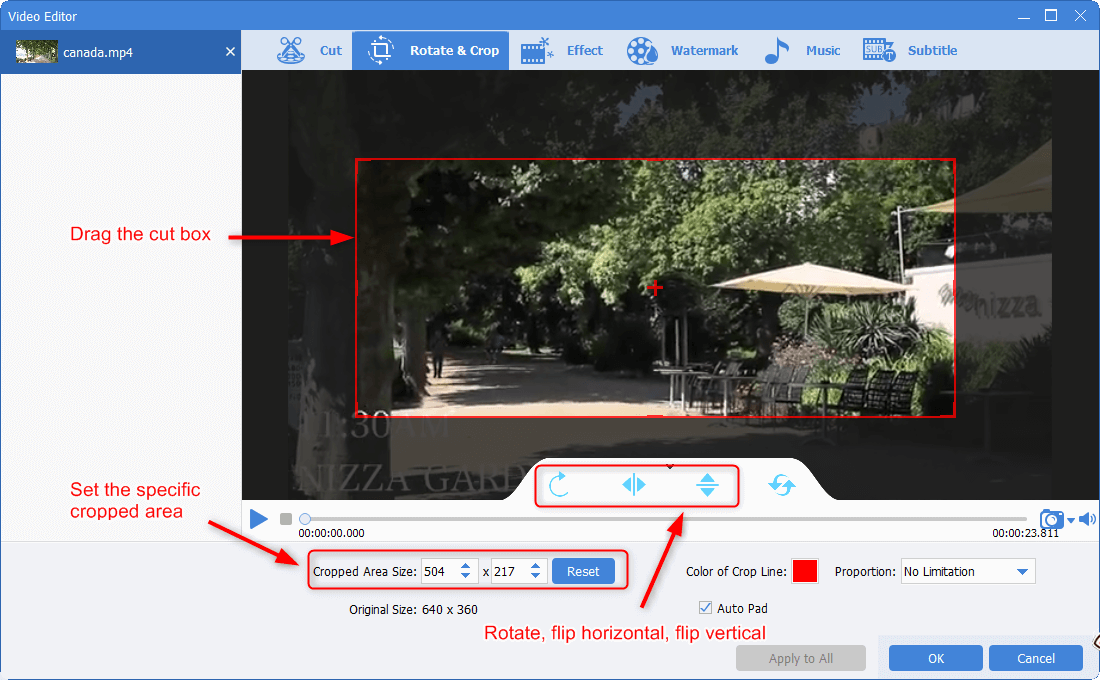
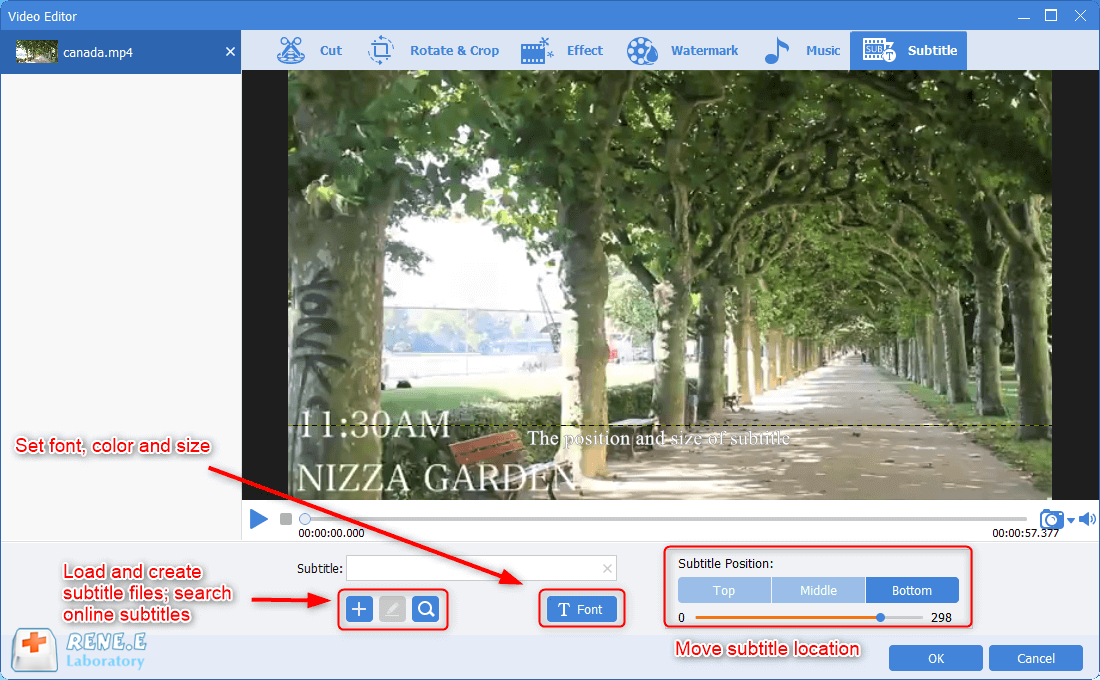
Renee Video Editor Pro provides an extensive array of Video Toolbox designed to meet the diverse needs of users. This suite is perfect for tasks such as cutting, cropping, rotating, watermarking, adding special effects, inserting subtitles, and incorporating background music.
① Rotate and Crop: Rotate videos or crop specific sections by dragging the frame or entering precise values.
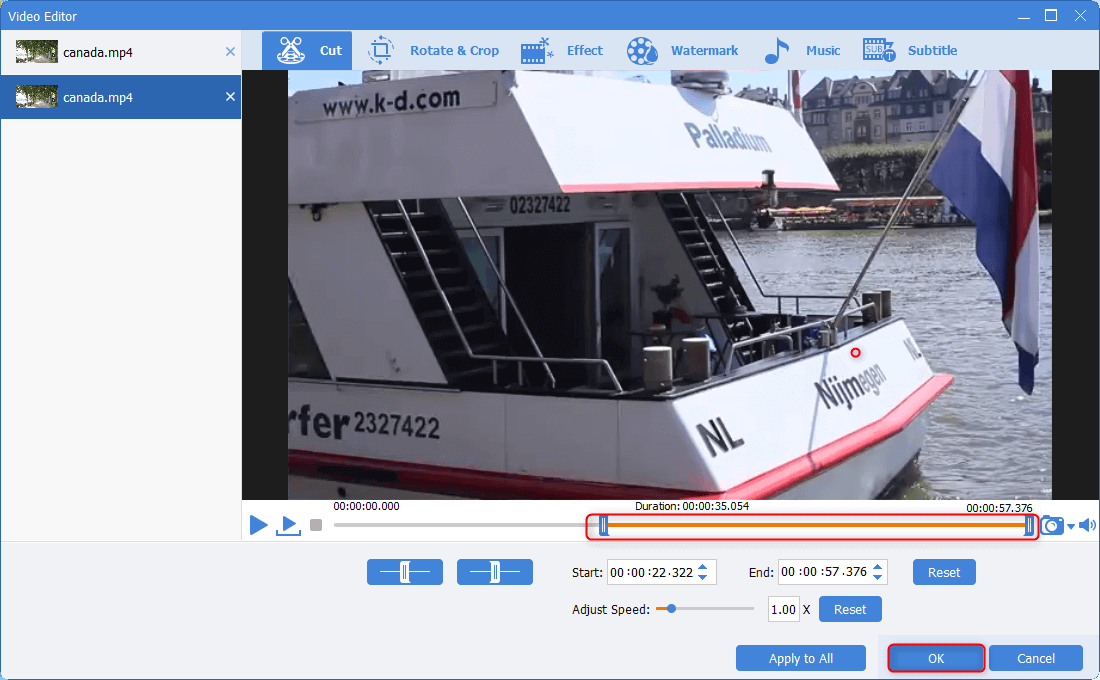
② Cut Video: Trim videos using sliders to set start and end times, and alter playback speed.
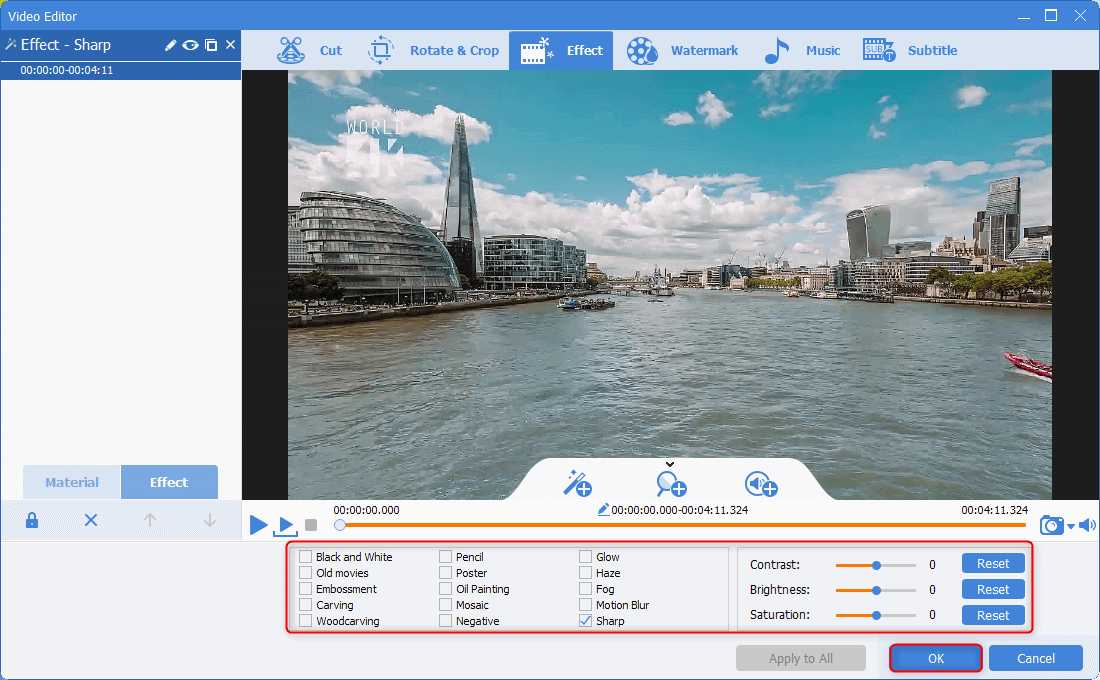
③ Effects Apply filter effects, zoom in/out, and volume adjustments.
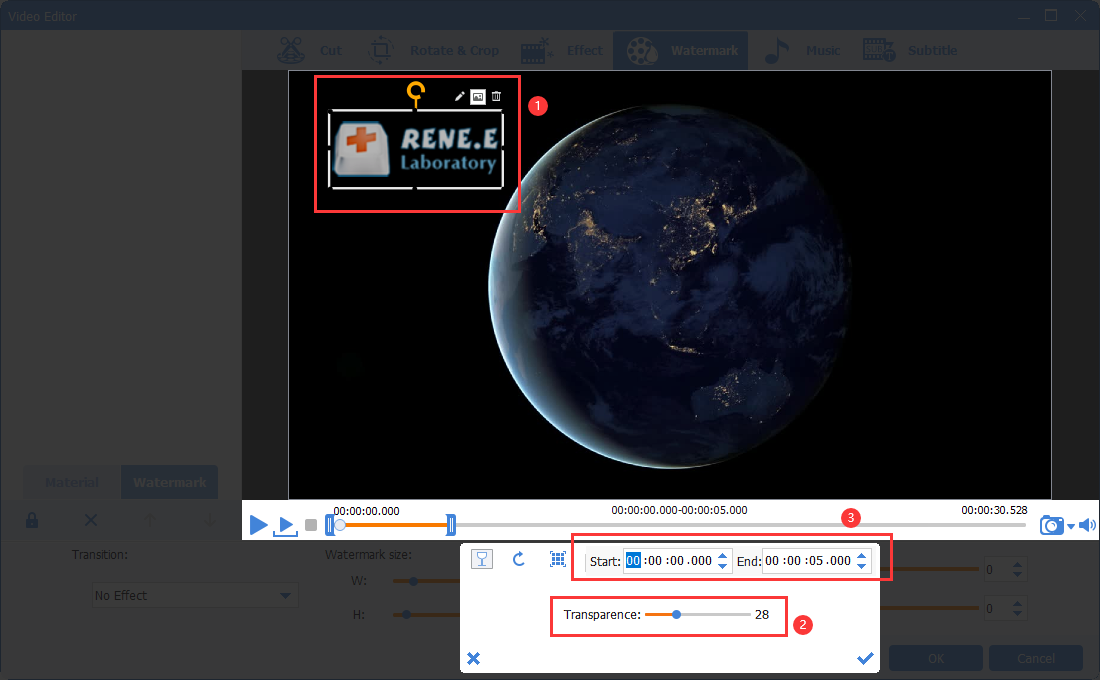
④ Watermarking: Add or remove text, image, video, and graphic watermarks.
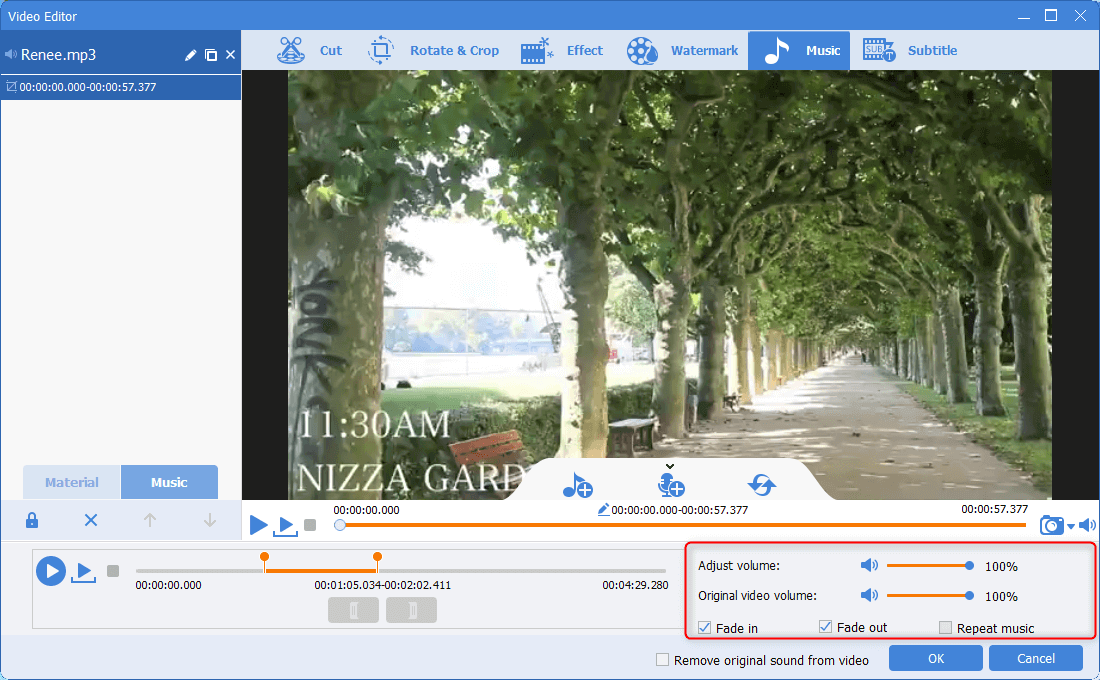
⑤ Background Music: Insert local music or voiceovers, with options to adjust volumes, set fade-ins, and fade-outs.
⑥ Subtitles: Add text and narration, customizing subtitle position and font style.