I. How to create a playlist in YouTube?
If you want to create a new YouTube playlist, you need to find a video you want to add to the playlist, and then use that video to create your playlist, the specific steps are as follows:
1. Create a new YouTube playlist
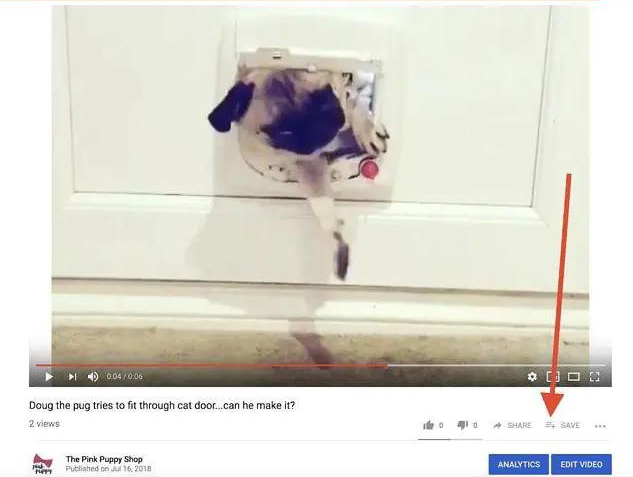
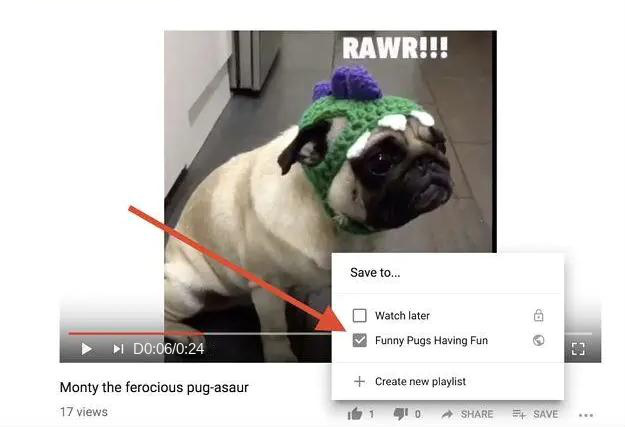
Go to the YouTube website, find and open the video you want to add to your new playlist. Below the video playback scroll bar, find and click the (SAVE) button.
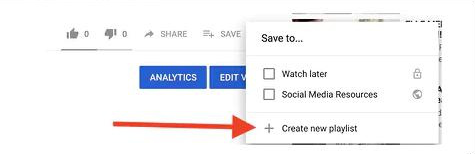
At this time, a selection menu will appear on the page, click the (Create new playlist) option to start creating a new playlist.
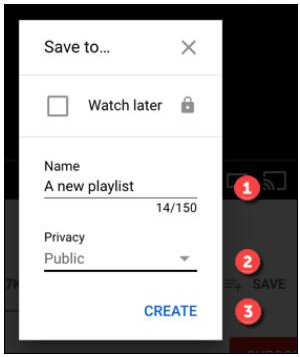
2. Naming the YouTube playlist
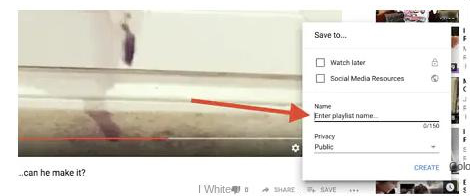
After creating a new YouTube playlist, you need to name the playlist, and you can enter up to 150 characters.
3. Privacy settings for YouTube playlists
After the playlist is named, you also need to determine the privacy level of the new playlist, which you can set to Public (allow anyone to search and view it), Unlisted (keep it public but not affected by searches), or Private (Only you can view or find it). After the setting is complete, click the (CREATE) button to complete the creation of a new playlist.
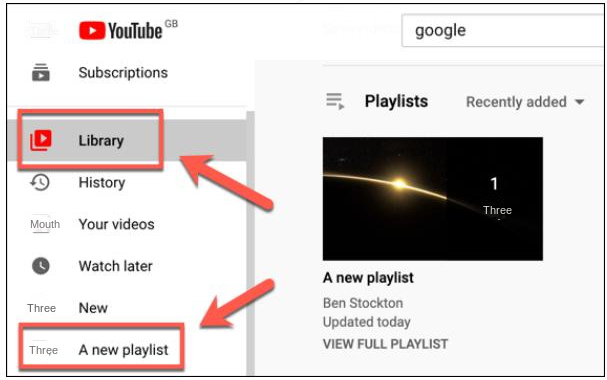
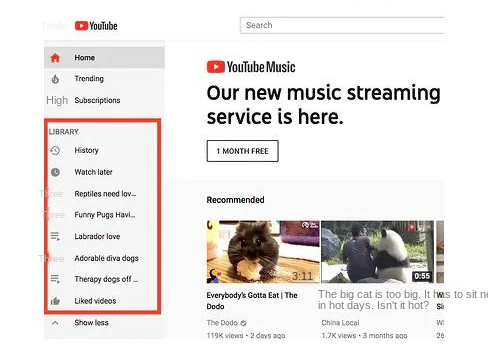
After the playlist is created, your saved videos will be directly added to the playlist, and you can find it directly in (LIBRARY) in the left menu bar of YouTube.
4. Add video to YouTube playlist
Next, you can continue to add videos to the new playlist. Refer to the adding steps above. After opening the new video and clicking the (SAVE) button, the interface will display the playlist you created. You only need to You need to check the corresponding playlist name, and the video will be successfully added to the corresponding playlist.
5. Batch add videos to YouTube playlist
If you want to add multiple videos to the playlist at the same time, you can do the following. In (LIBRARY) (Library) in the left menu bar of YouTube, you can see a list of all videos that have been added.
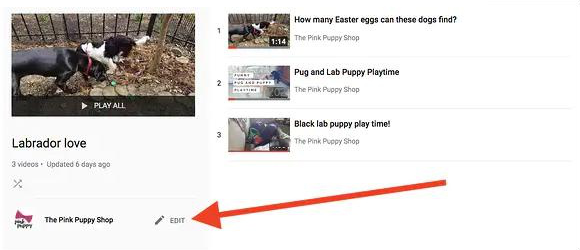
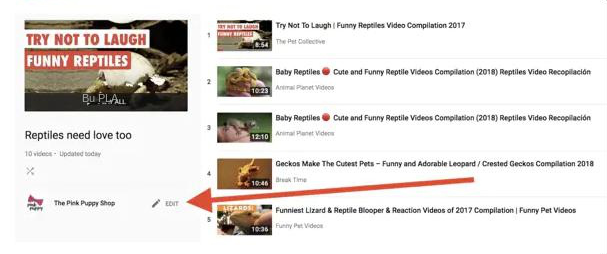
Click the YouTube playlist where you want to add videos in batches, and you will be redirected to the details page of the list. Click the (EDIT) button on the right side of the playlist icon to edit the content of the playlist.
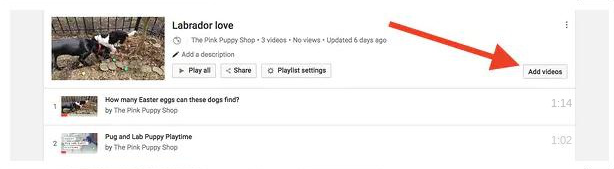
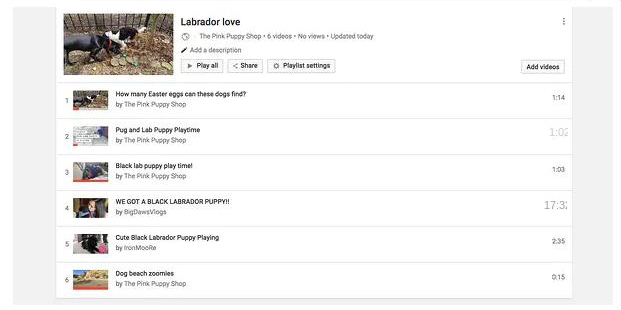
Next, you’ll see the (Add videos) button on the top right of the playlist. After that, you can batch add videos to the playlist.
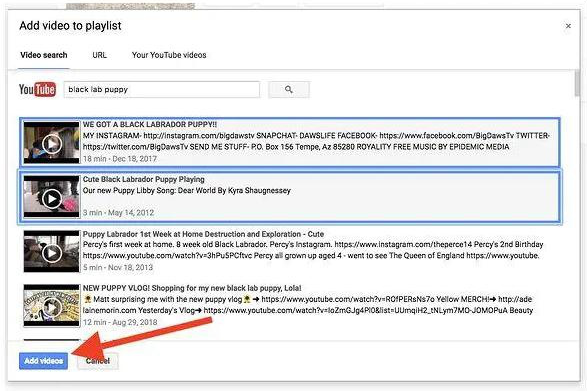
One way to add: You only need to search for the title of the video you want to add in the video search box in the (Video search) option bar, after selecting multiple videos, click the (Add videos) button , to complete adding videos in batches.
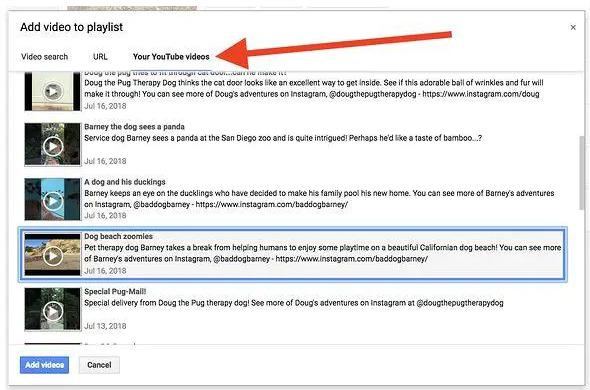
The second way to add: If you know the link of the video, or want to batch add the video content you uploaded to YouTube to the playlist, you can switch the option bar to (URL) (link) or (Your YouTube videos) ( Your YouTube video) realizes the batch addition of videos.
After clicking the (Add videos) button, the page will return to the playlist of videos. Repeat the operation to add all the favorite videos to the corresponding playlist.
6. Adjust the order of videos in the playlist
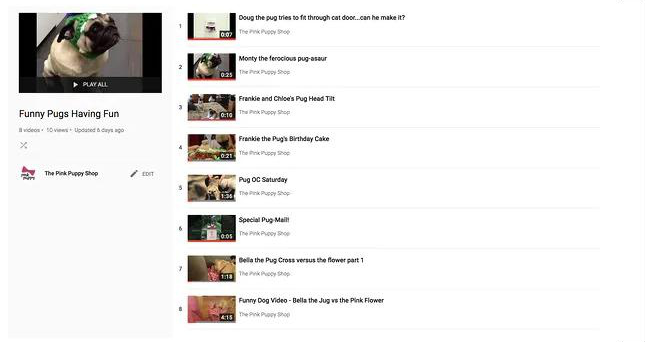
If you want to adjust the playback order of the videos in the playlist, you can enter the details page of the playlist you want to adjust through (LIBRARY) (library) on the left menu bar of YouTube.
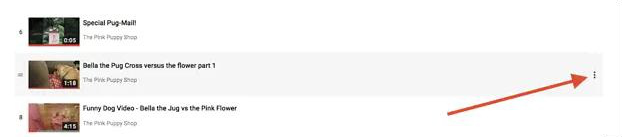
At this time, all the added videos will appear on the page. If you want to adjust the order of the videos, just click and drag them. If you want to perform more editing operations on a single video, such as deleting. All you need to do is hover your mouse over a single video, and three dot icons will appear on the right, click on that icon to take action.
7. Delete playlists on YouTube
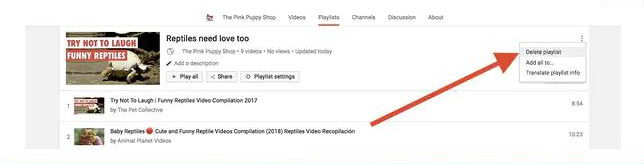
To delete a created YouTube playlist, just select it on the opened playlist details page and click the (EDIT) button.
Then click three dots in the playlist editing interface, and a drop-down menu will appear, select and click (Delate playlist) option, and the playlist will be permanently deleted.
We just learned how to make YouTube playlists. In the process of using YouTube, you may also encounter situations where you need to edit YouTube videos, so for the next extended reading, the editor will teach you how to use professional videos Editing tools –
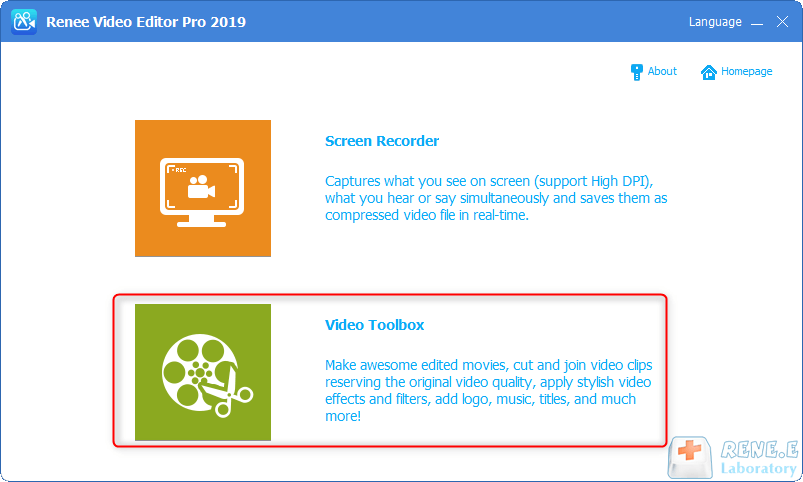
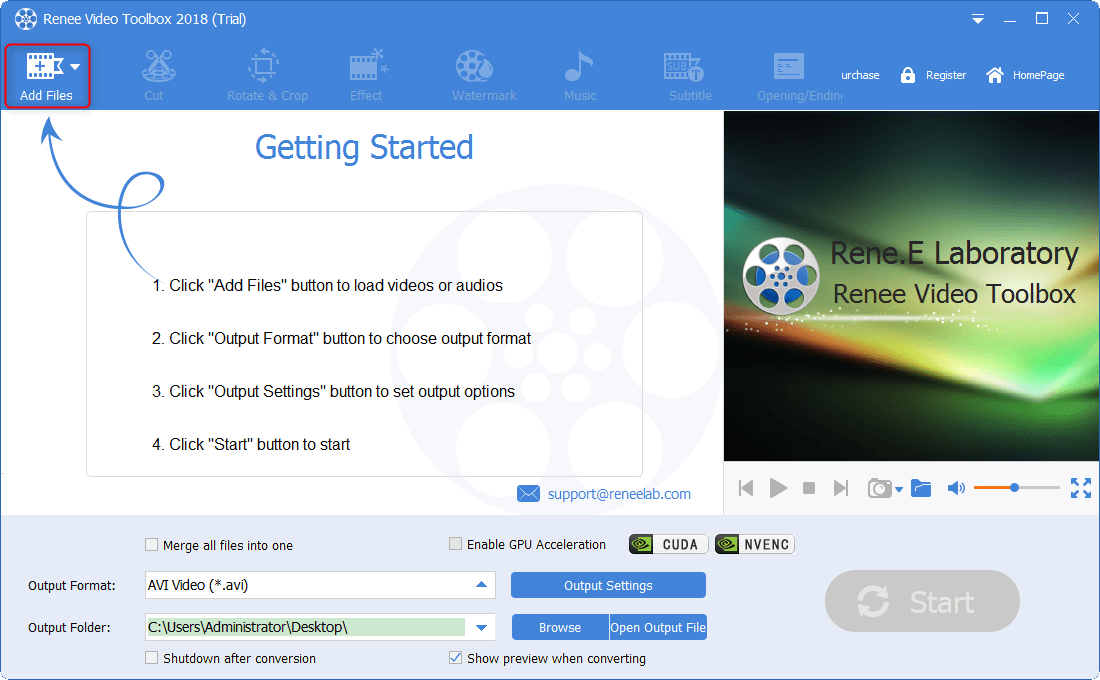
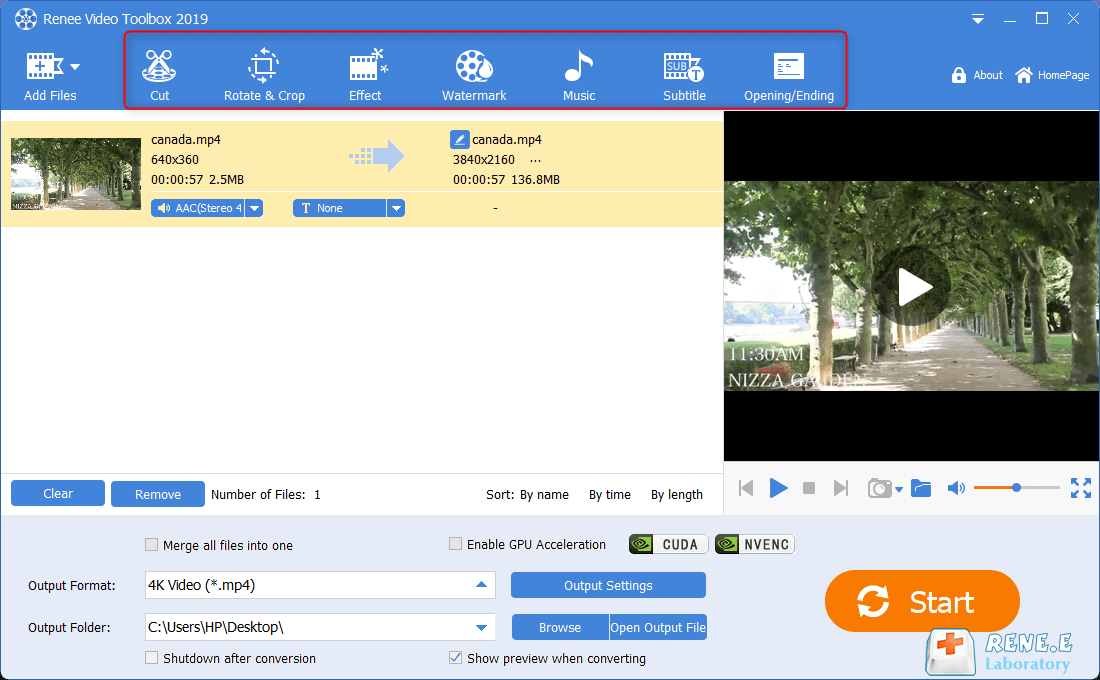
Renee Video Editor Pro performs personalized editing operations on YouTube videos, let’s learn together below.







User Comments
Leave a Comment