
How to Cut Android Videos

Summary
It is very common for us to record and download videos to the phone. Sometimes, we even edit them to create more attractive videos. As for Android users, how to cut videos on their smartphones? In this essay, we will show some methods to Android users and PC users.
How to Cut Videos on Android?
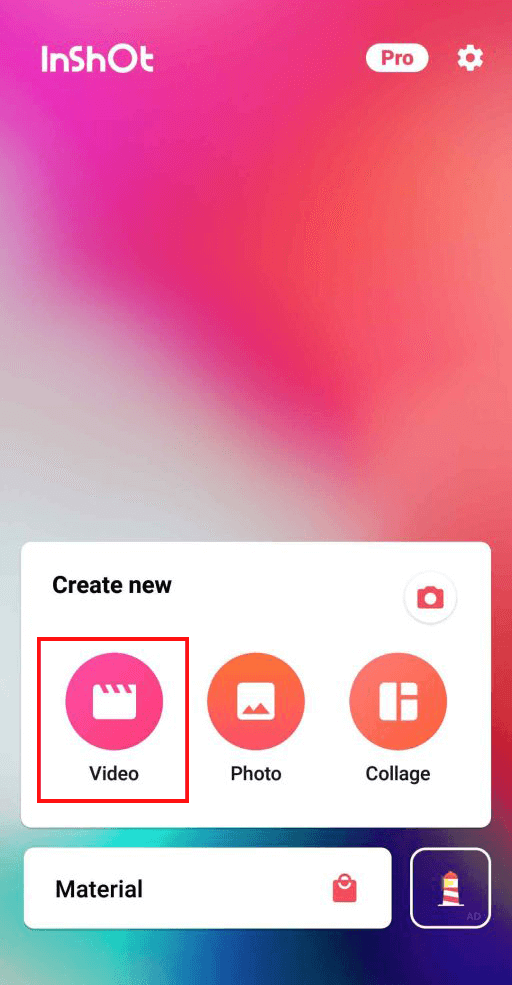
② Then, open and tap [Video].
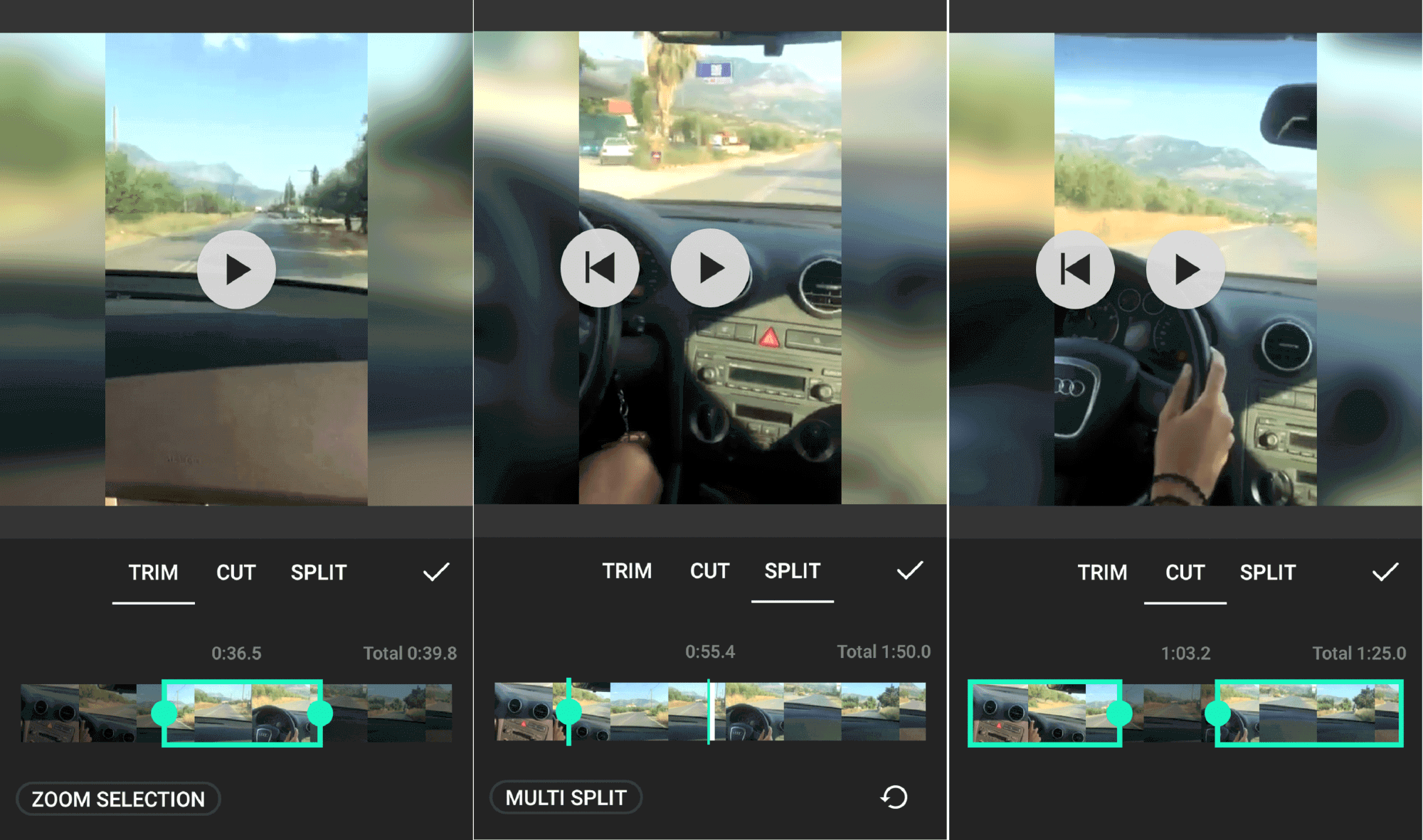
④ Tap [Trim]. Then, select [Trim], [Cut] or [Split].
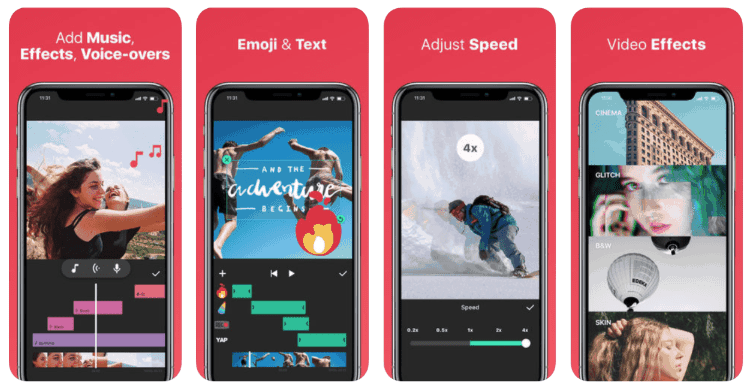
If you need to remove watermark, add new watermark, change background music, add special effects and merge some videos, you should use the professional video editor to edit the video on PC.
How to Further Edit Videos on PC?

Screen RecordingRecord screen and webcam in Windows computer.
Cut Videos & AudiosUsers are free to cut videos and audios clips with setting start and end time.
Multiple Edit ToolsMerge, crop, rotate, cut and transform video easily. Change and add background music, subtitles and remove watermark from video.
Format ConversionSupport to convert videos and audios into different formats.
Screen Recording Record screen and webcam in Windows computer.
Multiple Edit ToolsCut Videos & Audios Users are free to cut videos and audios clips with setting start and end time.
Multiple Edit ToolsMerge, crop, rotate, cut and transform video easily. Change and add background music, subtitles and remove watermark from video.
Format ConversionSupport to convert videos and audios into different formats.
② Transfer the target video from the phone to the computer.
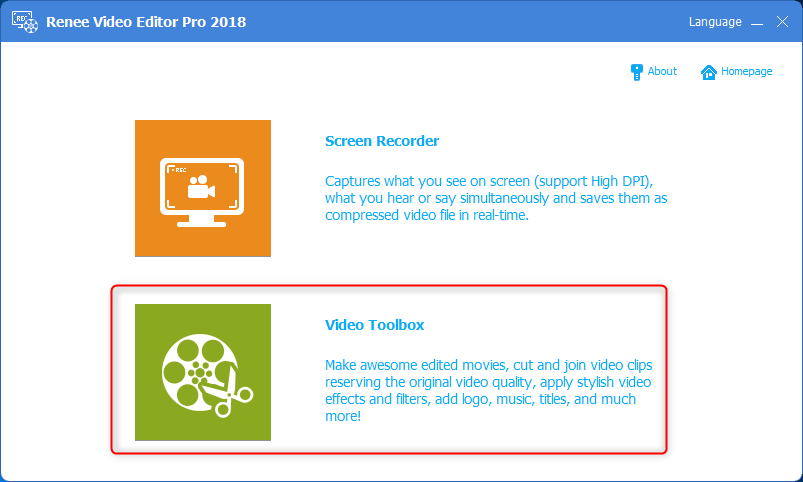
③ Open Renee Video Editor Pro and select [Video Toolbox].
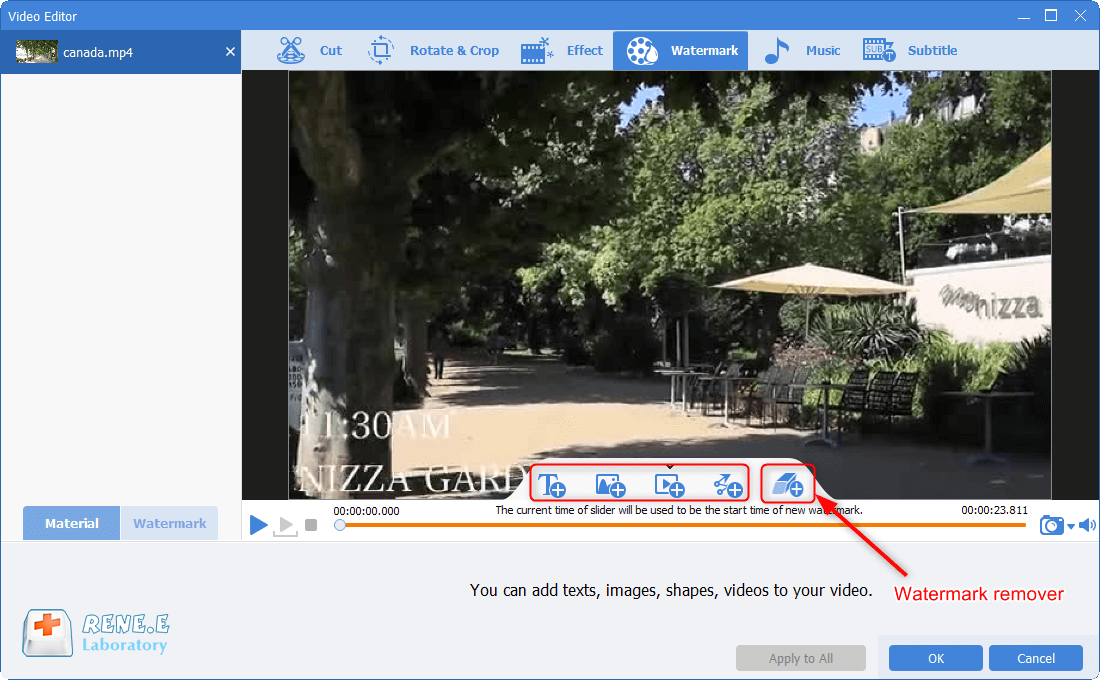
1. Remove Watermark
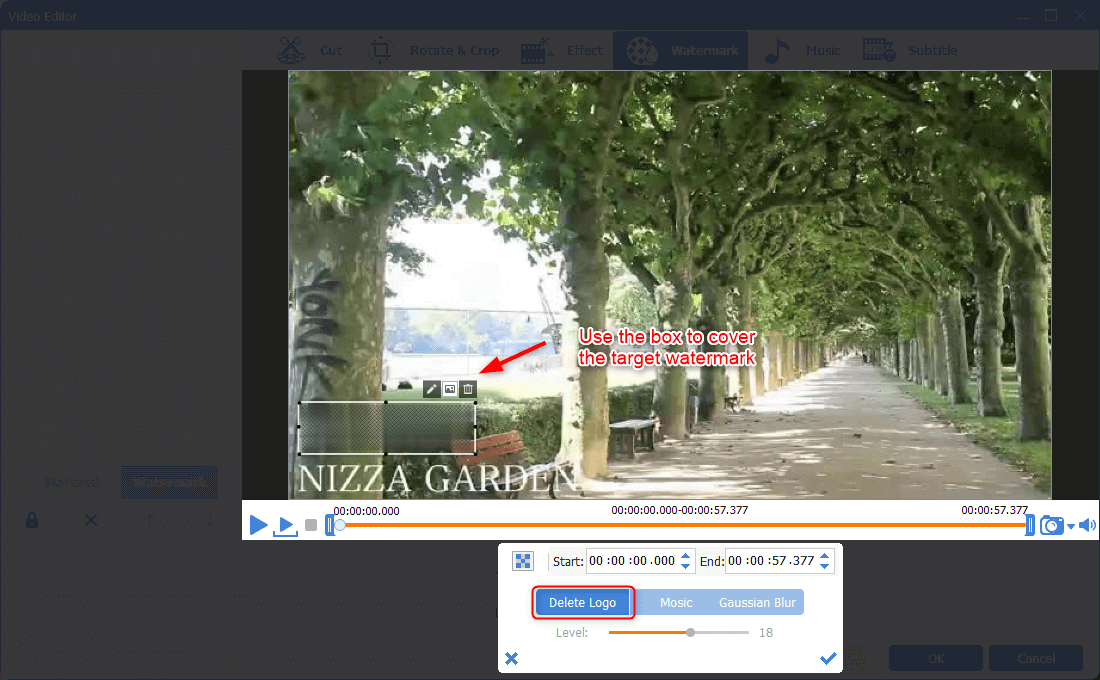
- In the function [Watermark], click the button [Watermark remover] and then use the box to cover the original watermark.
2. Cut Clips
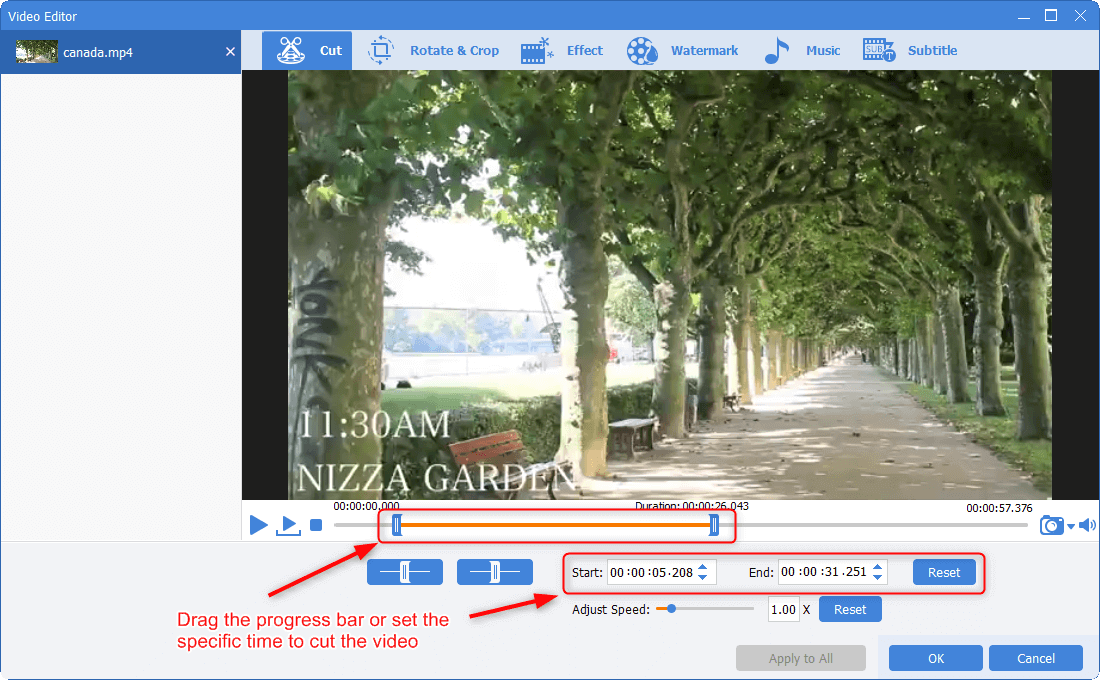
- In the function [Cut], drag the progress bar or set the specific start and end time to cut a clip out of the video.
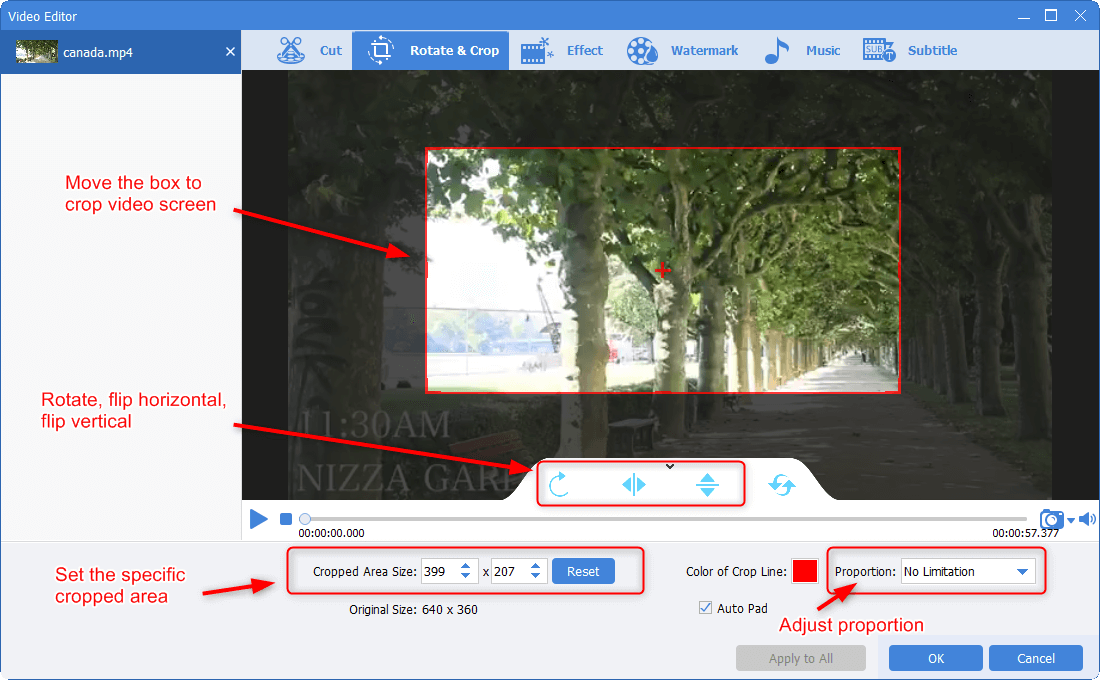
3. Rotate and Crop
- In the function [Rotate&Crop], move the box to crop the target video area. You can use this function to remove black bars. Then, the video screen can be rotated and flipped over. If you want to crop the screen perfectly, you can check to crop in proportion.
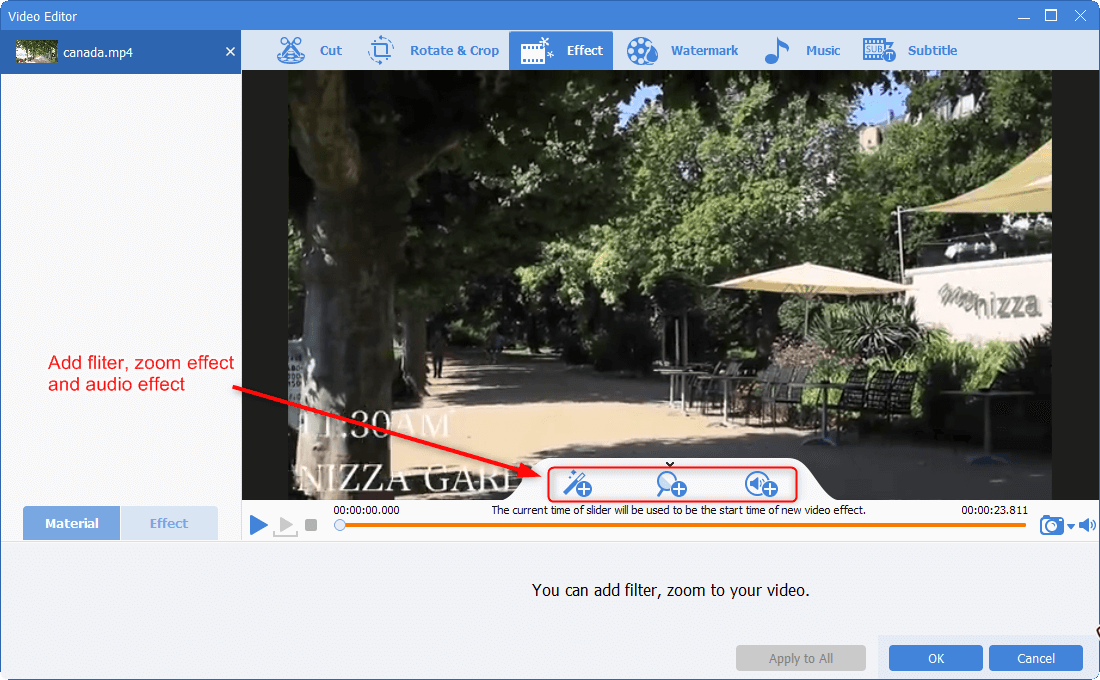
4. Add Special Effects
- In the function [Effect], add filters, adjust the values of brightness, comparison and saturation, and zoom in/out the video screen or volume up and down.
5. Add Watermark
- In the function [Watermark], you can add text, image, video and shape, or make videos overlaid in a video.

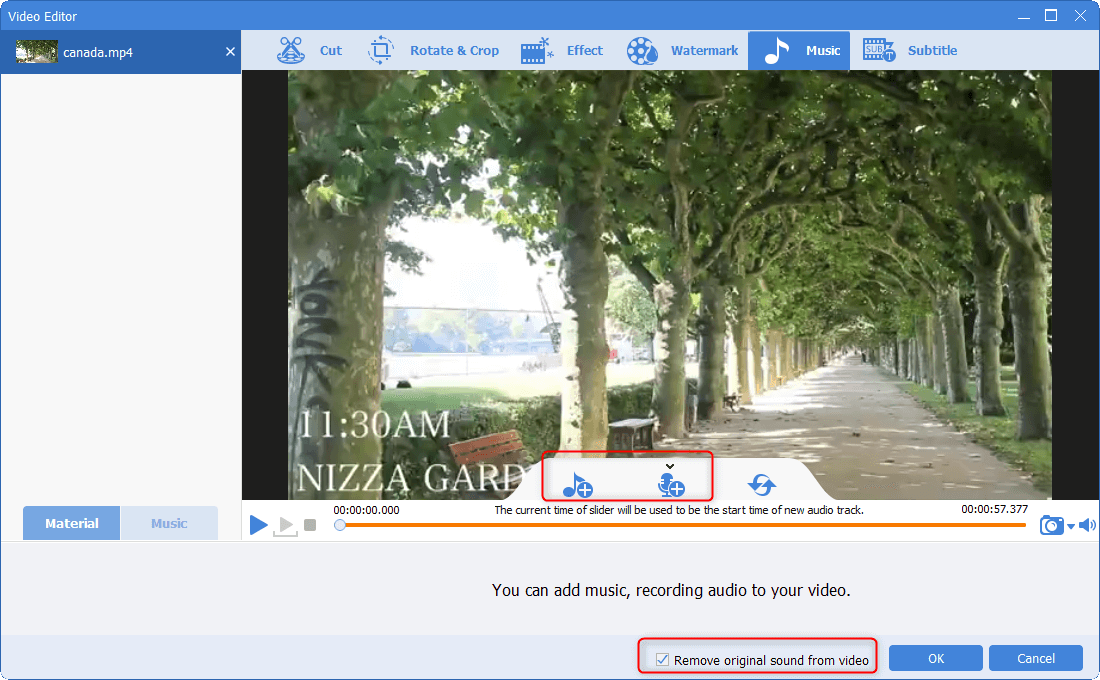
6. Add and Change Background Music
- In the function [Music], you can record voice over the video, or add background music for the video. Besides, you can remove the original sound from the video.
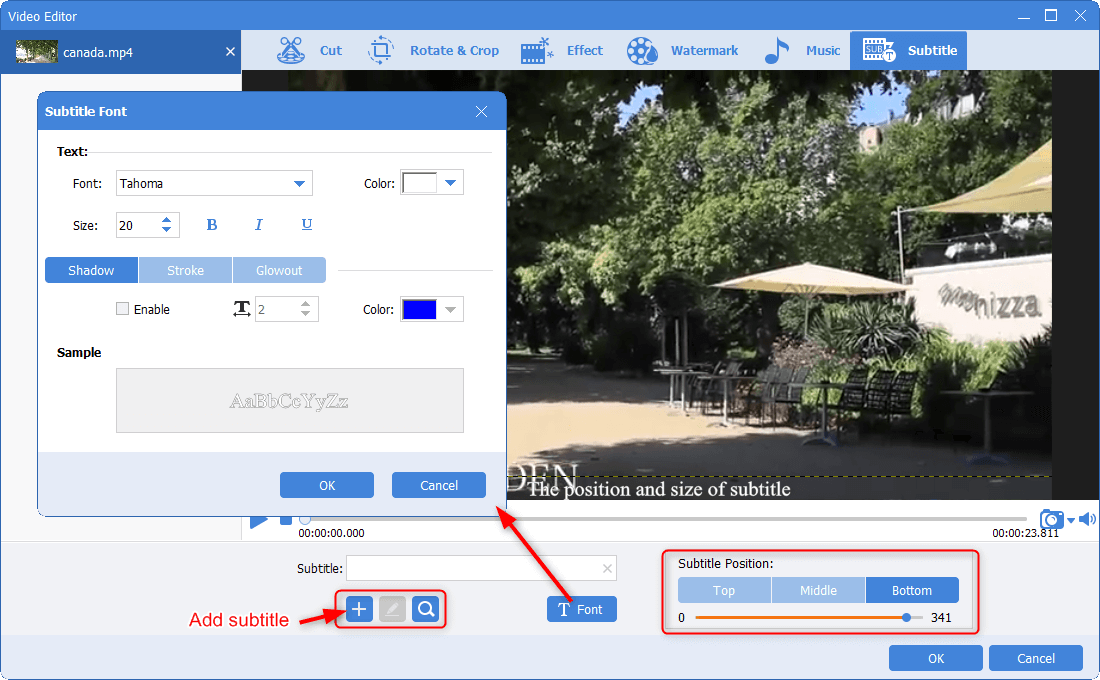
7. Add Subtitles
- In the function [Subtitle], add some subtitles and notes on the video. The location, font and style of the texts can be set by users.
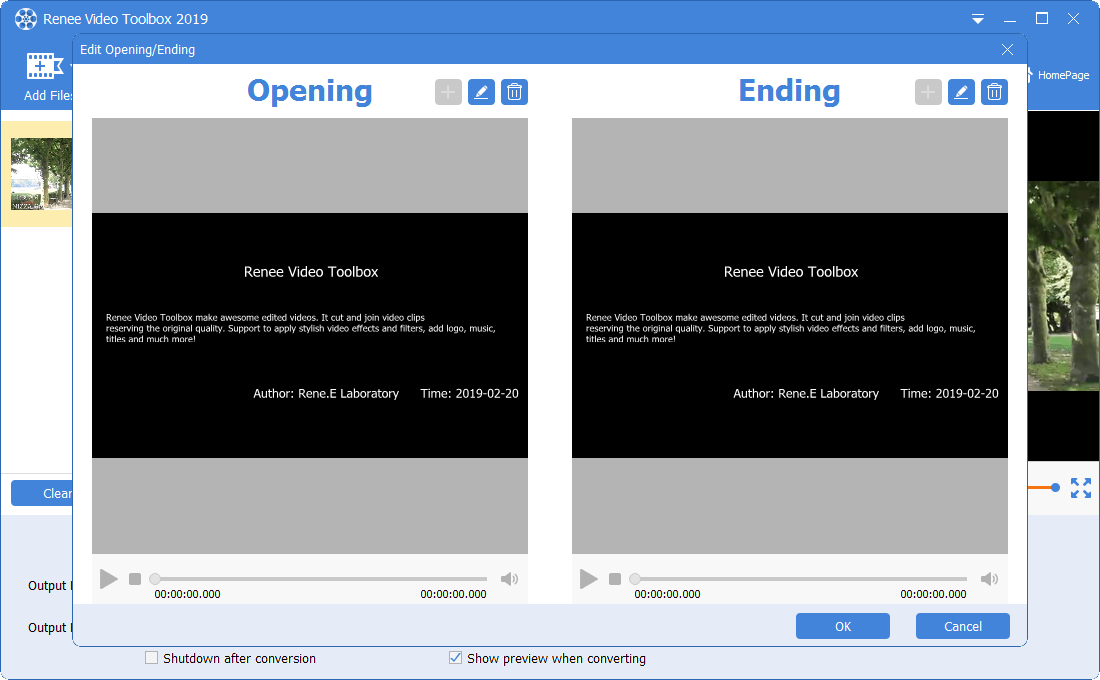
8. Add Opening/Ending
- In the function [Opening/Ending], you can make a good begin and an end for the video, such as introducing the producers, the publish data and the other words.
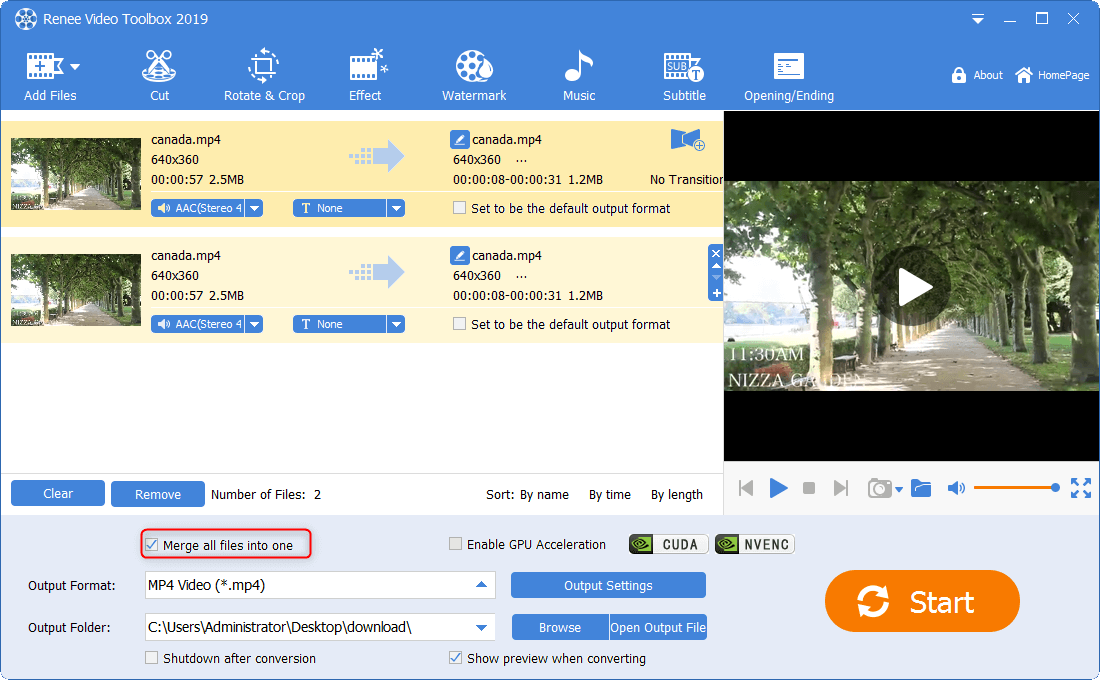
9. Merge Videos
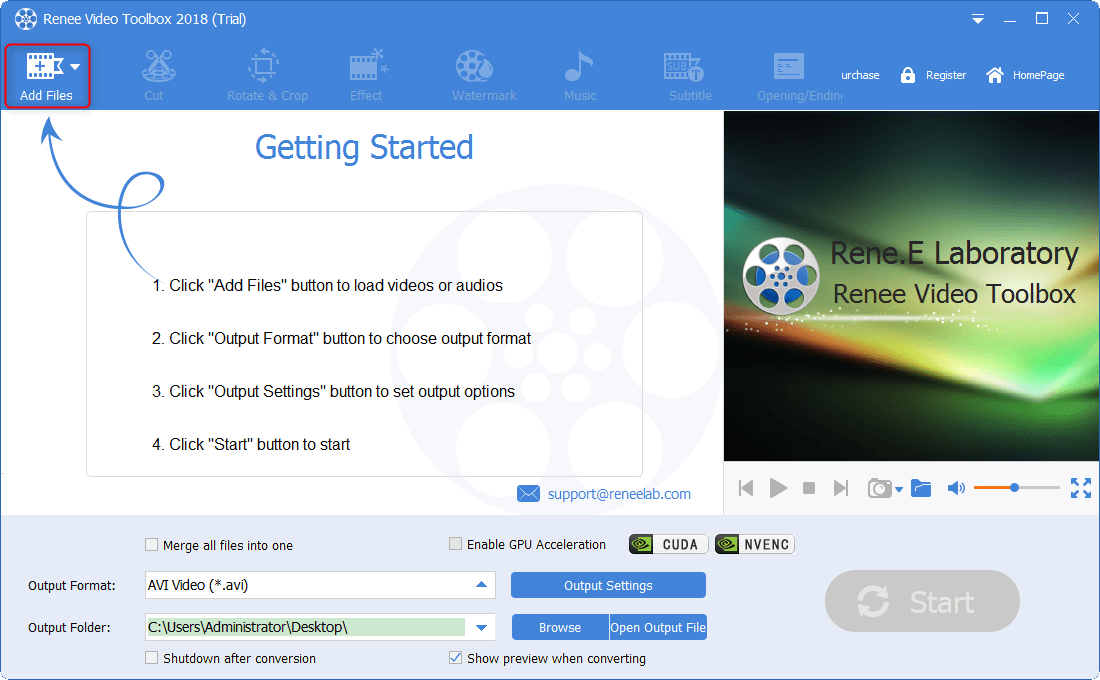
- If you want to merge two or more videos, you can check [Merge all files into one] to merge them. Even though the formats are not identical, the videos can be combined.
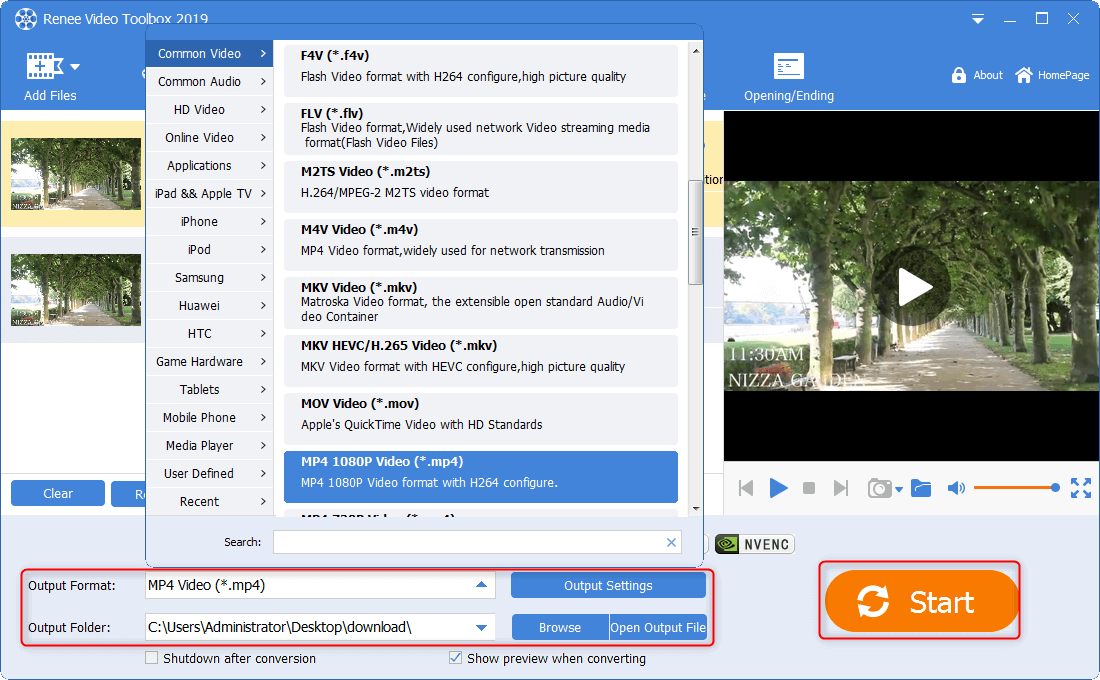
10. Convert Format
- As you finish your editing, you can select a format in the section [Output Format] and then select a folder to save. Finally, click [Start] to save the file.
Relate Links :
Best Android Video Downloader App
09-11-2026
Ashley S. Miller : Discover the best video download apps for Android users. Explore our recommendations to enhance your video streaming and...
How to Download YouTube Videos on Android?

09-11-2026
John Weaver : Learn how to download YouTube videos on Android devices for offline viewing. Access video content easily and conveniently...
How to record twitcasting videos and audios?

09-11-2026
Amanda J. Brook : Twitcasting is one of the most popular live streaming platforms in Japan, with countless users and viewers. Sometimes,...


User Comments
Leave a Comment